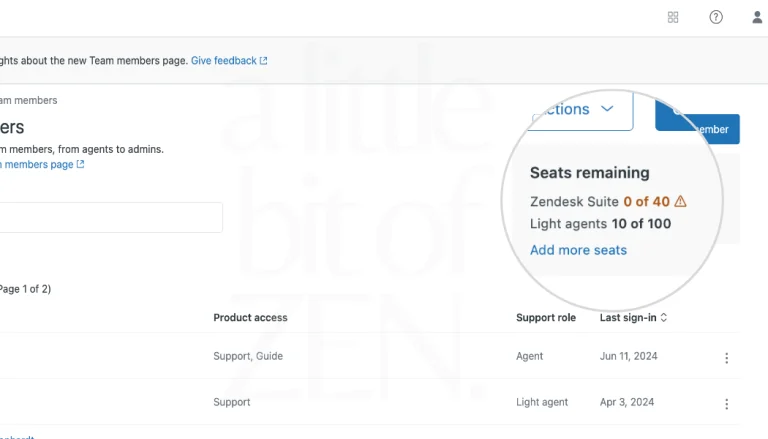
Light agents are internal or ‘staff’ users with severely limited functionality compared to full agents. In theory, this is great, but in practice, just reading tickets and adding private comments is often not enough.
???? Zendesk says:
“Give team members limited access to tickets without paying for more seats. They can read tickets and provide input by adding private comments.”
Agent Type Compared
Here’s a comparison table summarizing the capabilities of Zendesk Light Agents vs. Full Agents:
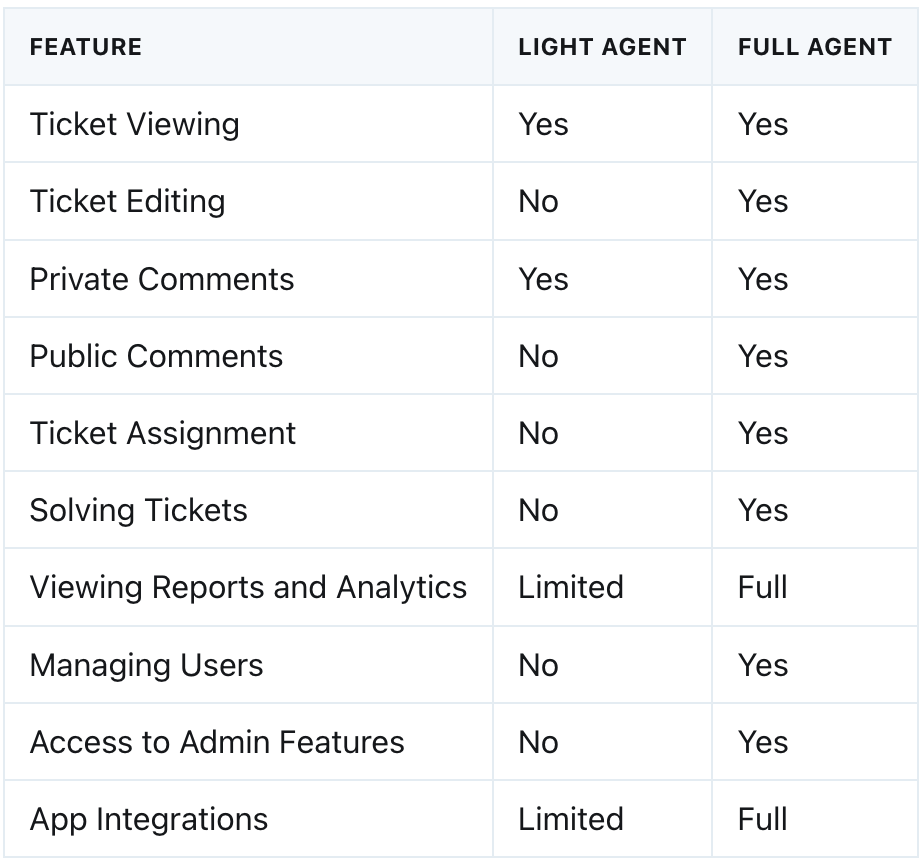
Light Agents are typically used for internal collaboration where full ticket management isn’t required, while Full Agents have comprehensive access to all Zendesk functionality.
So what else can you do without breaking the rules?
By leveraging Zendesk’s built-in triggers, automations, and webhooks, you can actually do quite a lot. For example, a common scenario is when a light agent’s group is assigned a ticket by a full agent. After reviewing and commenting, the light agent may want to send it back but light agents can’t reassign tickets, so they’re stuck.
???? Important Note
Light Agents cannot be assigned tickets directly. However, if they belong to a group, the group can be assigned the ticket.
Instead, an admin can design a trigger to detect a piece of text in an internal note. Using the text {send to ops group} as shown below. This text can be typed manually, added via a macro, or inserted automatically by another trigger.
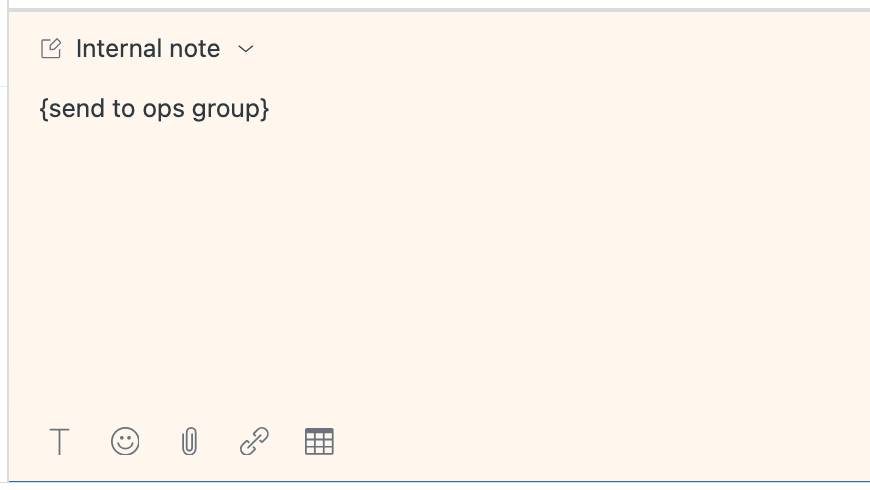
Once this text is present and the light agent submits the ticket, a trigger can detect it and reassign the ticket back to the original group (or any group you choose). Here’s how you do it in two steps.
Step 1: Create a Webhook
Create a webhook to access the Zendesk API. This post explains how. You only need to do this once, and it can be reused for multiple triggers.
Step 2: Create a Trigger
Set up a trigger with these conditions:
- Ticket > Ticket > Is > Updated
- Ticket > Comment text > Contains at least one of the following words: {send to ops group}
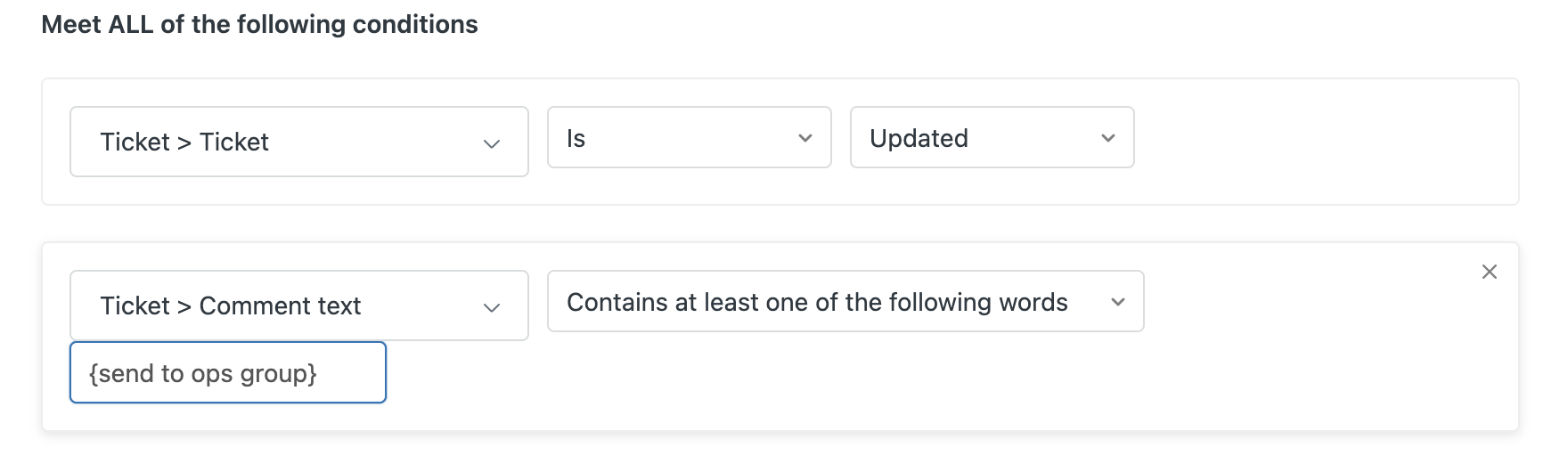
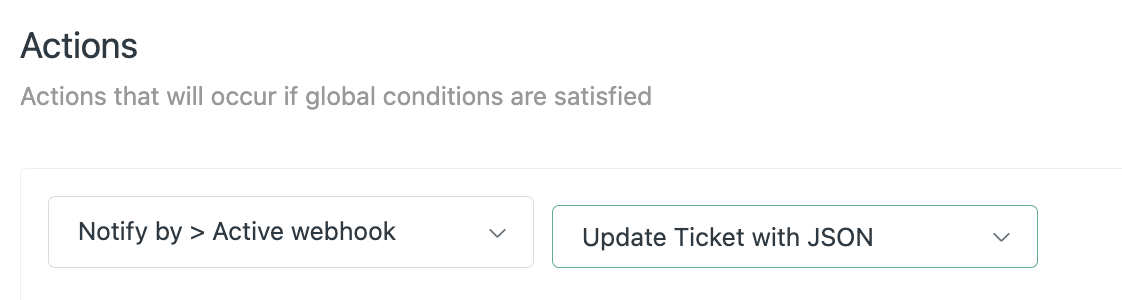
Next, set the Assignee field to the group you want using a webhook:
- Click Add Action
- Select Notify by > Active webhook
- Choose the webhook you created to update tickets
???? Group ID
You can find the group ID in Admin Center > People > Groups. Open the group and check the URL:
/groups/xxxxxxxxxxxxxxxxx
Your JSON should look like this:
{
  "ticket": {
    "group_id": 10480622913809
  }
}
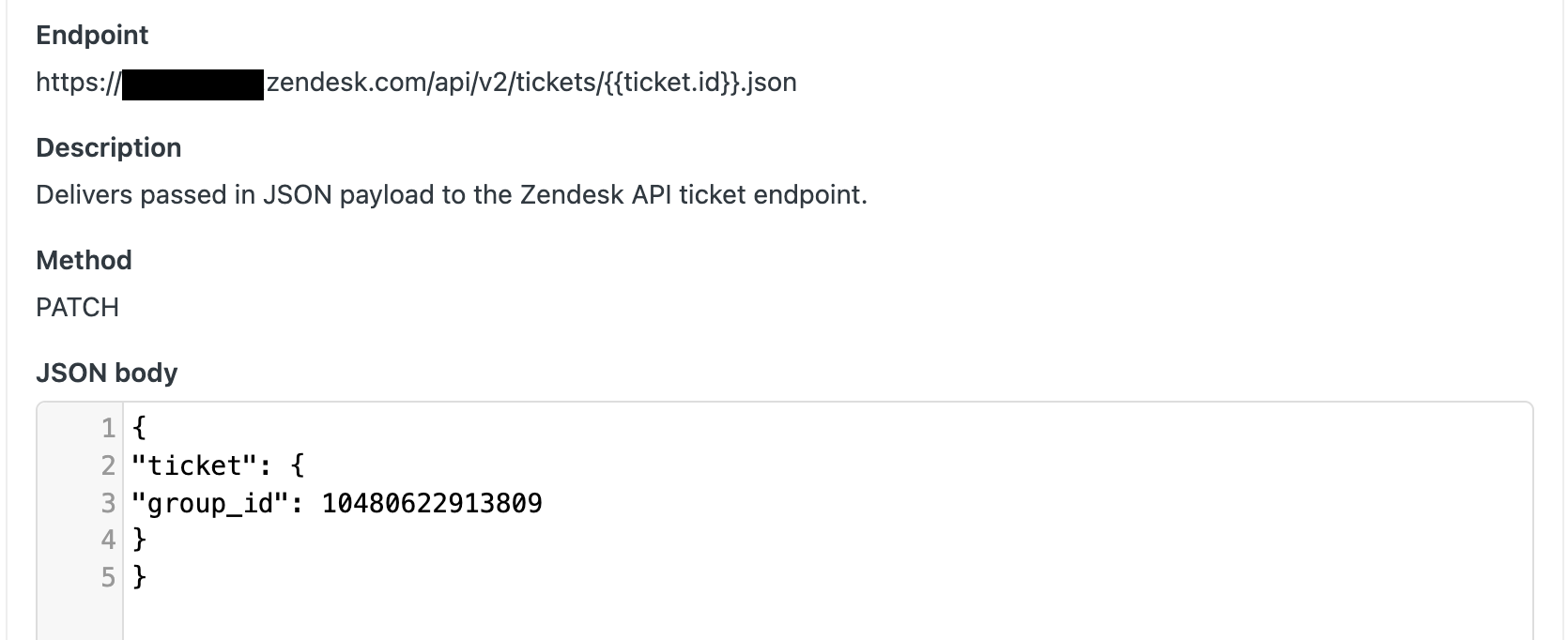
Now, when Light Agents type {send to ops group} in a comment and submit, the ticket will be reassigned to the group_id specified in your JSON. This webhook method can be extended to dozens of other use cases. If you’re unsure where to start, get in touch.