Zendesk never sleeps, rolling out updates and fixes that can impact your support operations. We’re here to cut through the noise and give you our expert take. Here’s our analysis of a key change from August 2026.
Zendesk’s Quiet Fix Is A Loud Reminder: It’s Time To Audit Your Permissions
What We Think:
Zendesk is correcting a minor but important permissions loophole for Enterprise customers. While they’ve labelled it a “limited-impact bug fix,” we see it as a welcome and necessary tightening of security around Zendesk team visibility. The change itself is small—some agents will lose view-only access to the Team Members page—but the principle behind it is huge. Our verdict: This is a positive move that reinforces the principle of least privilege. We’re advising all our Enterprise clients to use this as a trigger for a full audit of their agent roles and permissions.
The Reality Check: What’s Actually Changing?
Let’s cut through the jargon. For a while now, there’s been a slight inconsistency in Zendesk’s Admin Center for Enterprise accounts. An agent could have a role with permission to “Manage end users” but explicitly *without* permission to “Manage team members.” Logically, they shouldn’t be able to see a list of internal team members.
However, due to this bug, they could. These agents would still see the “Team Members” option in the sidebar and could access a legacy, view-only page showing a list of their colleagues. They couldn’t make any changes, but they could see who was on the team.
Starting August 19, 2026, this is being corrected. Here’s the breakdown of what happens next:
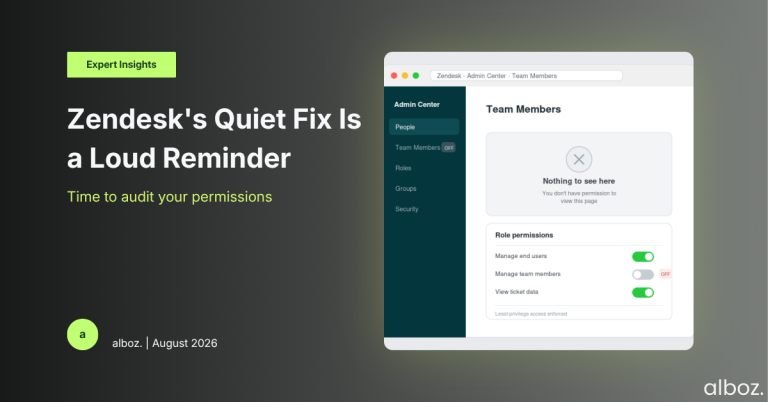
- Agents without the “Manage team members” permission will no longer see the “Team Members” link in their Admin Center sidebar.
- If they try to access the old pages directly (using /agents or /members URLs), they’ll now be met with a “Nothing to see here” message.
- Agents with the correct permissions will see no change and continue to have full access as intended.
Zendesk says no action is required, and for most, that’s true. But we believe proactive teams will see this as an opportunity, not just a notification.
Our Expert Opinion: Why This “Bug Fix” Matters
Our take is that calling this just a bug fix undersells its importance. This change is fundamentally about data governance and enforcing the principle of least privilege—a core security concept that states users should only have access to the specific data and functions they need to do their jobs, and nothing more.
While view-only access to a list of names might seem harmless, in a large enterprise, it’s a form of data leakage. It exposes the internal structure of your support organisation to individuals who have no operational need for that information. For organisations with strict data handling policies or complex, siloed teams, controlling internal Zendesk team visibility is just as important as controlling customer data visibility.
This fix ensures that the permissions you’ve carefully configured in your roles are actually being enforced consistently across the platform. It closes a small but notable gap, making your Zendesk instance more secure and predictable. It’s a sign of platform maturity and a good thing for every security-conscious administrator.
How We’d Handle the Rollout: A Proactive Permissions Audit
While Zendesk states “no action is required,” we believe in turning these small announcements into moments of strategic improvement. This change is the perfect excuse to conduct a quick but thorough review of your agent roles and permissions. Here is what we’re advising our clients to do.
Use this checklist as a guide to ensure your permissions are in perfect alignment with your operational needs.
| Step | Action | Why It’s Important |
|---|---|---|
| 1. Identify Affected Roles | Review all custom roles. Specifically, find roles that have the “Manage end users” permission but do not have the “Manage team members” permission. | This pinpoints exactly which groups of agents will notice this change. It allows you to be proactive in your communication. |
| 2. Validate Business Need | For the roles identified, ask a simple question: “Did these agents have a legitimate business reason for viewing the team list?” | Most of the time, the answer will be no. But if it’s yes, you need a plan to restore that visibility through the proper permissions. |
| 3. Adjust Permissions (If Necessary) | If a role genuinely needs to see the team list, an administrator must grant them the “Manage team members” permission. Be cautious and ensure they don’t get more access than they truly need. | This ensures the change doesn’t disrupt a valid workflow, but forces you to grant the access explicitly and correctly, rather than relying on a bug. |
| 4. Communicate Internally | Send a brief, clear communication to the managers of the affected agent groups. Let them know a sidebar option is disappearing and why, so they aren’t caught off guard by questions. | Proactive communication prevents confusion and unnecessary internal support tickets. It shows you’re on top of platform changes. |
| 5. Schedule a Full Audit | Use this as a catalyst to schedule a wider, quarterly review of all agent roles and permissions in your Zendesk instance. | Permissions creep is a real problem. Regular audits ensure your instance remains secure and that agent access aligns perfectly with their current responsibilities. |
In closing, this is a minor technical correction with major strategic implications for those who care about security and proper governance within Zendesk. It’s a positive step that makes the platform more robust and aligns agent capabilities more closely with the permissions administrators have set.