Zendesk’s feature release schedule is relentless, with updates landing almost daily. It can be a full-time job keeping up. We’re here to give you our expert, no-nonsense take on what matters.
Zendesk Search Just Became Infinitely More Powerful: Our Expert Take
What We Think: Zendesk is finally adding custom field support to its customisable search columns and filters. This is not a minor tweak; it’s a game-changing enhancement. It elevates the recently-released search customisation features from a “nice-to-have” to an absolutely essential tool for any organisation with a moderately complex workflow. This update directly addresses a long-standing frustration and significantly closes the gap between the flexibility of Views and the ad-hoc nature of Search. We’re giving this one a huge thumbs up.
The Reality Check: What’s Actually Changing?
Not long ago, Zendesk introduced two promising features: the ability to customise the columns in your search results and the power to add custom filters to narrow down your search. It was a great first step, but it came with a major limitation: it only worked with Zendesk’s standard, out-of-the-box fields. For most of our clients, the real business context lives in custom fields—things like “Product Line,” “Reason for Contact,” “Customer ID,” or “Region.”
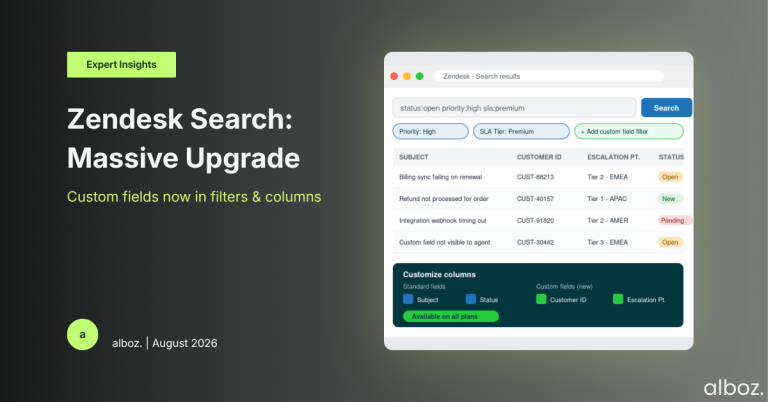
This announcement fixes that. Starting from August 10, 2026, Zendesk is rolling out support for your unique custom fields within both of these features. This means you can now perform a Zendesk custom search and not only filter by your organisation’s specific data points but also display them directly in the search results table. The best part? There is nothing you need to do to enable it. This functionality will be automatically available on all Zendesk Support and Suite plans.
Our Expert Opinion: The Deep Dive
Let’s be blunt: without custom field support, the customisable search features were of limited use. The real power of Zendesk lies in how you tailor it to your specific business processes, and that is almost always accomplished through custom ticket fields. This update unleashes the true potential of the search interface.
Previously, to find a set of tickets based on custom data, an agent’s options were clunky. They either had to know the precise advanced search syntax (e.g., `fieldvalue:your_value`), ask an admin to build a dedicated View for a one-off query, or export data to a spreadsheet to filter it there. This created friction, slowed down investigations, and made agents overly reliant on admins.
This change democratises data access for your agents. A support manager can now, on the fly, search for all tickets with a “Priority” of “High,” then add a filter for a custom field like “Service Level Agreement: Premium,” and finally customise the columns to show another custom field like “Internal Escalation Point.” This entire workflow now happens in a few clicks within the main search bar, without ever leaving the page or needing special permissions.
For us, the biggest impact is on operational efficiency. Think about the time saved. Instead of waiting for a new View to be built and approved, a team lead can immediately investigate a pattern they’ve noticed. An agent can quickly find all tickets they’ve handled for a specific custom “Customer Type” to prepare for a review. This makes your whole team more self-sufficient and data-aware.
How We’d Handle the Rollout
While the technical rollout is handled by Zendesk, the people-part is on you. A feature is only useful if your team knows it exists and understands how to use it. Here is what we’re advising our clients to do to maximise the value of this update.
| Phase | Action Item | Owner | Key Consideration |
|---|---|---|---|
| 1. Awareness & Communication | Draft and send an internal announcement to all Zendesk agents and managers. | Zendesk Admin / Team Lead | Don’t just say “there’s a new feature.” Explain why it matters. Use a concrete example relevant to your business. |
| 2. Identify Key Use Cases | Hold a brief workshop with team leads to identify the top 3-5 custom fields that would be most useful in search. | CX Manager / Zendesk Admin | Think about common “I wish I could quickly find all tickets where…” scenarios. This will provide great examples for training. |
| 3. Training & Enablement | Run a 15-minute training session (or record a short video) demonstrating how to add a custom field filter and a custom column to the search results. | Team Lead / Trainer | Use the use cases identified in the previous step as your live examples. This makes the training immediately relevant. |
| 4. Feedback & Review | After a week, check in with the team. Ask them how they’re using the new Zendesk custom search capabilities and if it’s saving them time. | CX Manager / Team Lead | This is a good opportunity to see if any custom fields are poorly named or if there are others that should be prioritised for reporting. |
In closing, this update is a significant quality-of-life improvement that transforms Zendesk’s native search from a simple lookup tool into a flexible, powerful data exploration interface. It empowers agents, reduces administrative overhead, and allows your team to leverage the custom data that makes your Zendesk instance unique. It’s a simple change on the surface, but one with a deep and positive operational impact.