Each month, Zendesk introduces a host of new features and improvements to streamline operations, boost agent efficiency, and unlock deeper AI-powered customer service. Here’s a look at the key updates from the Zendesk October 2026 release, complete with practical steps to put them to use.
Manage Automated Resolution Usage Notifications
This feature allows administrators to configure email notifications for automated resolution usage. These notifications help you track usage against the Automated Resolutions dashboard, Resolution Allowance, and Resolution Usage dashboards, ensuring you can stay ahead of your limits. The settings allow you to define specific thresholds for when notifications are sent.

- Navigate to Admin Center and click the Billing icon in the sidebar.
- Select Subscription from the menu.
- Click “Manage notifications” next to the Automated resolutions section.
- Select the billing contacts who should receive the notifications.
- Configure the percentage thresholds at which you want notifications to be triggered.
- Save your changes to activate the new notification settings.
Close All Ticket Tabs at Once
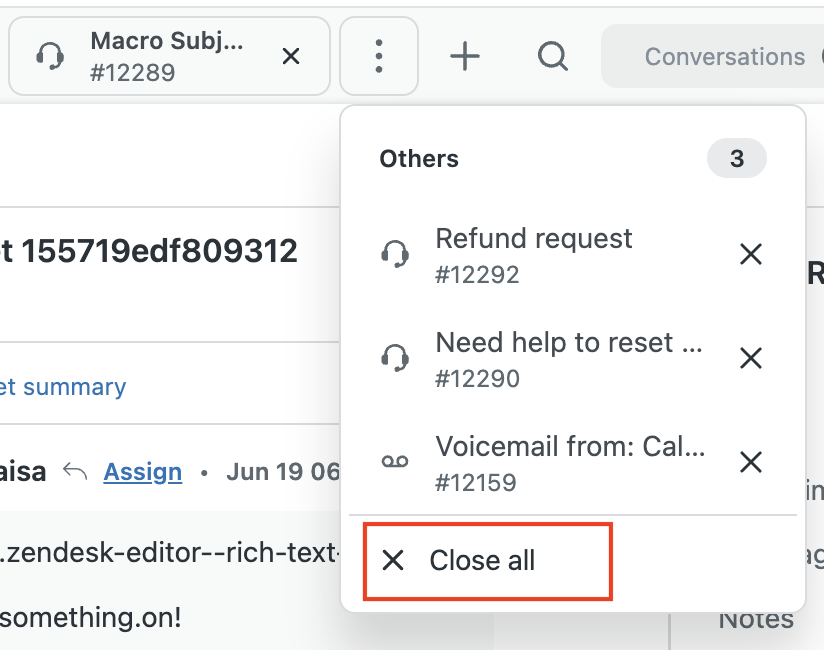
Agents handling a high volume of tickets can now close all open tabs in the Agent Workspace with a single command. This enhancement improves efficiency by eliminating the need to close each tab individually, allowing agents to quickly clear their workspace and prepare for new incoming work.
- When you have multiple ticket tabs open, right-click on any tab.
- Select the “Close all tabs” option from the context menu that appears.
- Alternatively, click the tab menu icon (three vertical dots) and select “Close all tabs”.
- Confirm the action in the pop-up window to clear your workspace.
Voice AI Agents
Now generally available, Voice AI agents provide native, end-to-end phone automation for Zendesk voice customers. These agents can hold real-time conversations, seamlessly hand off to human agents when needed, and support 53 languages. All conversations generate transcripts, summaries, and recordings for full visibility.
- Ensure you have a Zendesk voice plan.
- Navigate to the AI agents page in Admin Center.
- Create a new AI agent and select “Voice” as the channel.
- Configure the agent’s persona, language, and knowledge sources.
- Build out conversation flows and procedures for common customer intents.
- Connect the AI agent to a voice number to activate it.
Saved Recommendations in Admin Copilot
Admin Copilot now includes the ability to save useful recommendations for later. This allows administrators to triage suggestions, flag items for future action, and revisit them from a dedicated “Saved” tab in Admin Center, improving the long-term optimisation of your account.
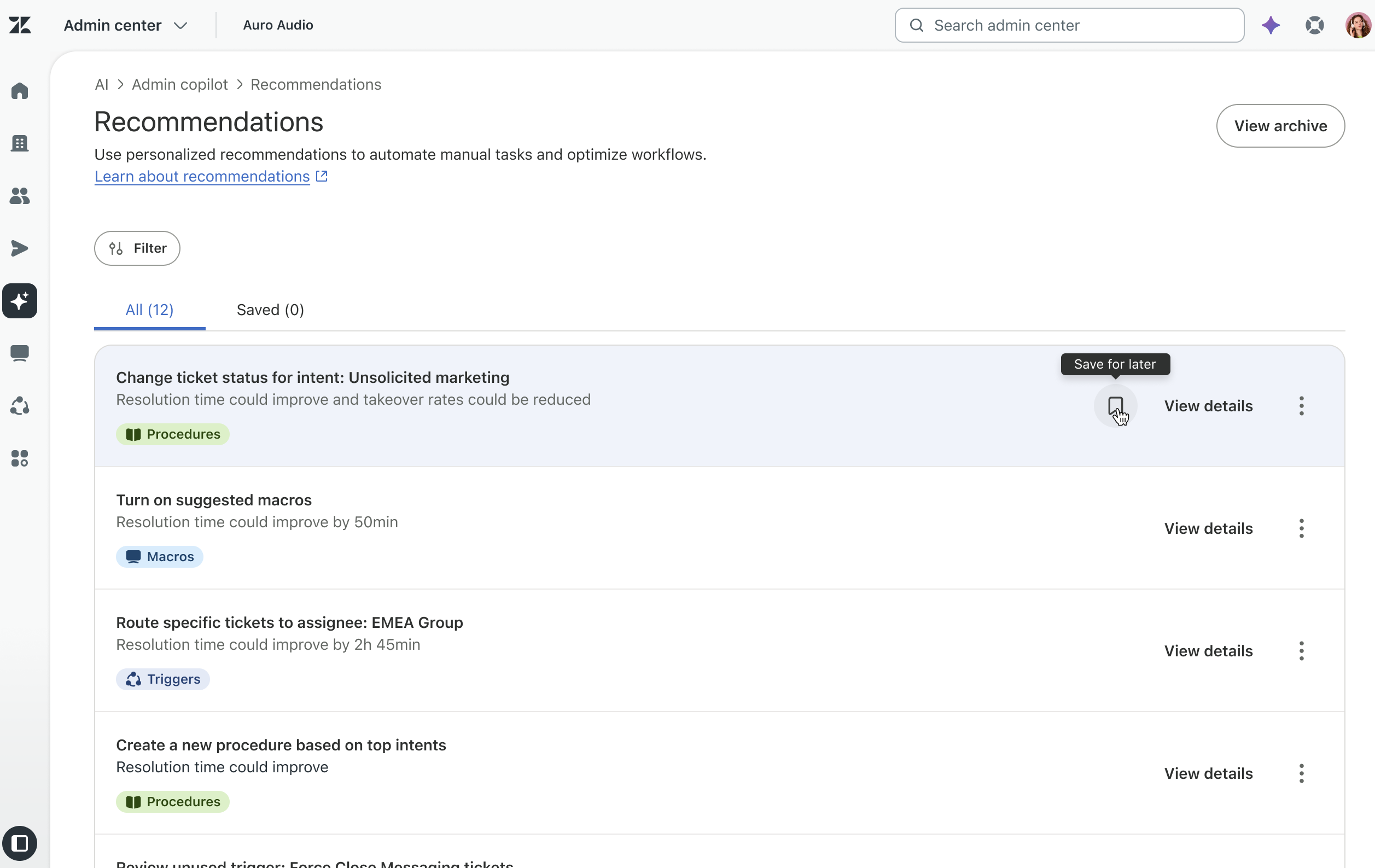
- Go to Admin Center and open Admin Copilot from the top bar.
- Review the recommendations provided by Copilot.
- Click the bookmark icon next to any recommendation you wish to save.
- Navigate to the “Saved” tab to view all your saved recommendations.
- Click on a saved item to review its details and take action.
Wait Steps in Action Flows
Action flows can now be paused for a specified duration using wait steps. This feature allows you to delay the continuation of a workflow for a period ranging from one minute to 31 days, simplifying the creation of automated escalations, follow-ups, and other multi-stage processes. Details of the wait period are captured in the execution logs for full visibility.
- Open an existing action flow or create a new one in Admin Center.
- Click the (+) icon to add a new step to your flow.
- Select the “Wait” step from the available options.
- Configure the duration of the wait period, specifying the number of days, hours, or minutes.
- Add subsequent steps that should execute after the wait period has elapsed.
- Save and publish your action flow.
Universal Knowledge Connector
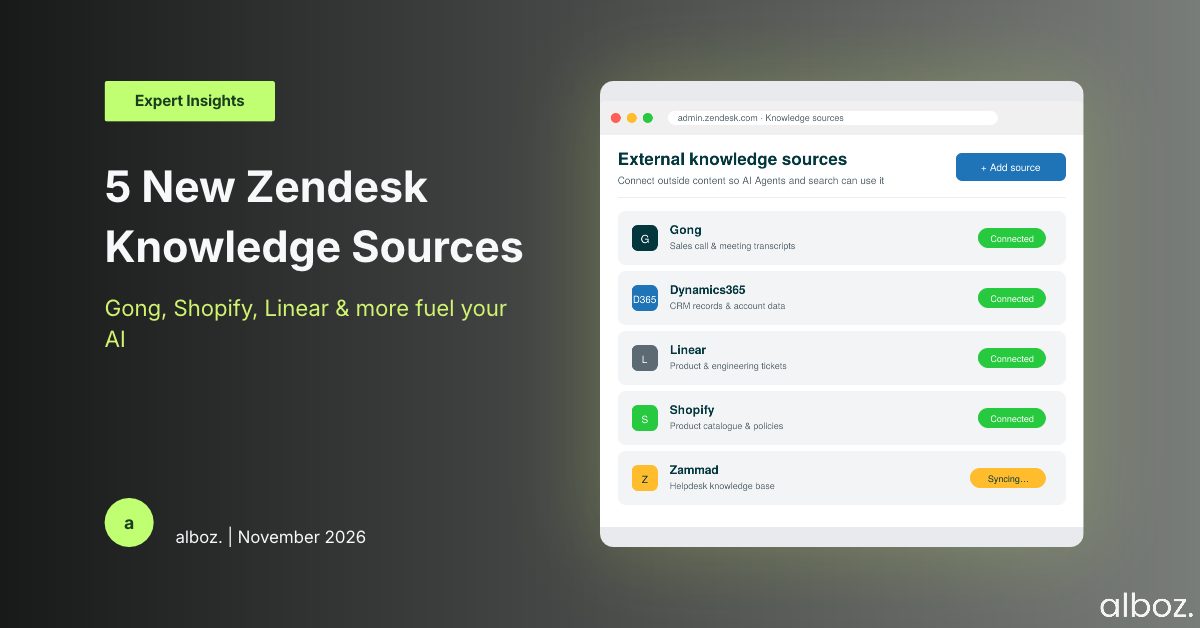
The Universal Connector for external knowledge sources is now generally available. This feature enables administrators to connect content from any REST/JSON API-based source to Zendesk using an API key. Once connected, you can configure field mapping, pagination, and retrieval settings to make the external content available to AI agents, Copilot, and generative search.
- In Admin Center, navigate to Content and then Knowledge sources.
- Click “Add source” and select the Universal Connector.
- Provide a name for your source and enter the base URL of the API.
- Configure the authentication method, typically using an API key.
- Define the data retrieval settings, including pagination and field mappings.
- Test the connection to ensure data is retrieved correctly.
- Save the source to make the external content available.
WhatsApp Re-engagement Tools
New tools are available to help agents re-engage with customers on WhatsApp after the 24-hour reply window has closed. The Agent Workspace now provides clear visibility of the reply window status. After it closes, agents can browse, preview, and send pre-approved message templates to restart the conversation.
- Navigate to the WhatsApp templates page in Admin Center to review and manage approved templates.
- In the Agent Workspace, open a WhatsApp ticket where the 24-hour window has expired.
- Observe the banner indicating the reply window is closed.
- Click the template icon in the composer to browse available message templates.
- Select a template, fill in any required variables, and send it to the customer.
Customisable IT Asset Record Lists
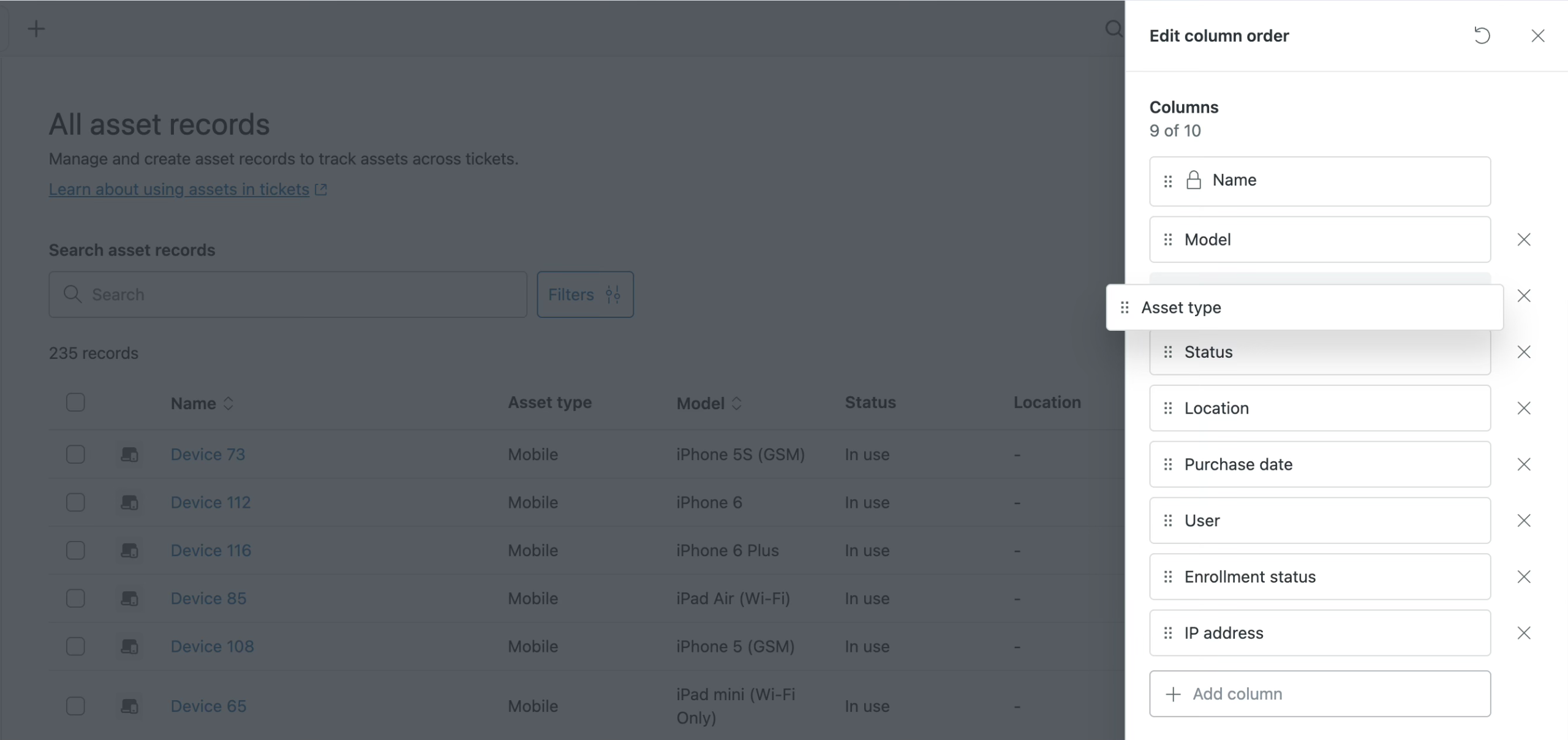
The IT asset records list in Employee Services now supports customisable columns, advanced filtering, and sorting capabilities. This enhancement makes it easier for IT admins and agents to locate and organise asset records by both standard and custom fields, improving asset management efficiency. This is available for Employee Service Suite Professional plans and above.
- Navigate to the Assets section within your Zendesk instance.
- Click the “Columns” button to open the column configuration panel.
- Select or deselect the fields you want to display in the asset list.
- Click the “Filters” button to apply advanced filters based on asset fields.
- Click any column header to sort the list by that field.
- Save your view for future use.
Simplified Schedule Imports in Workforce Management
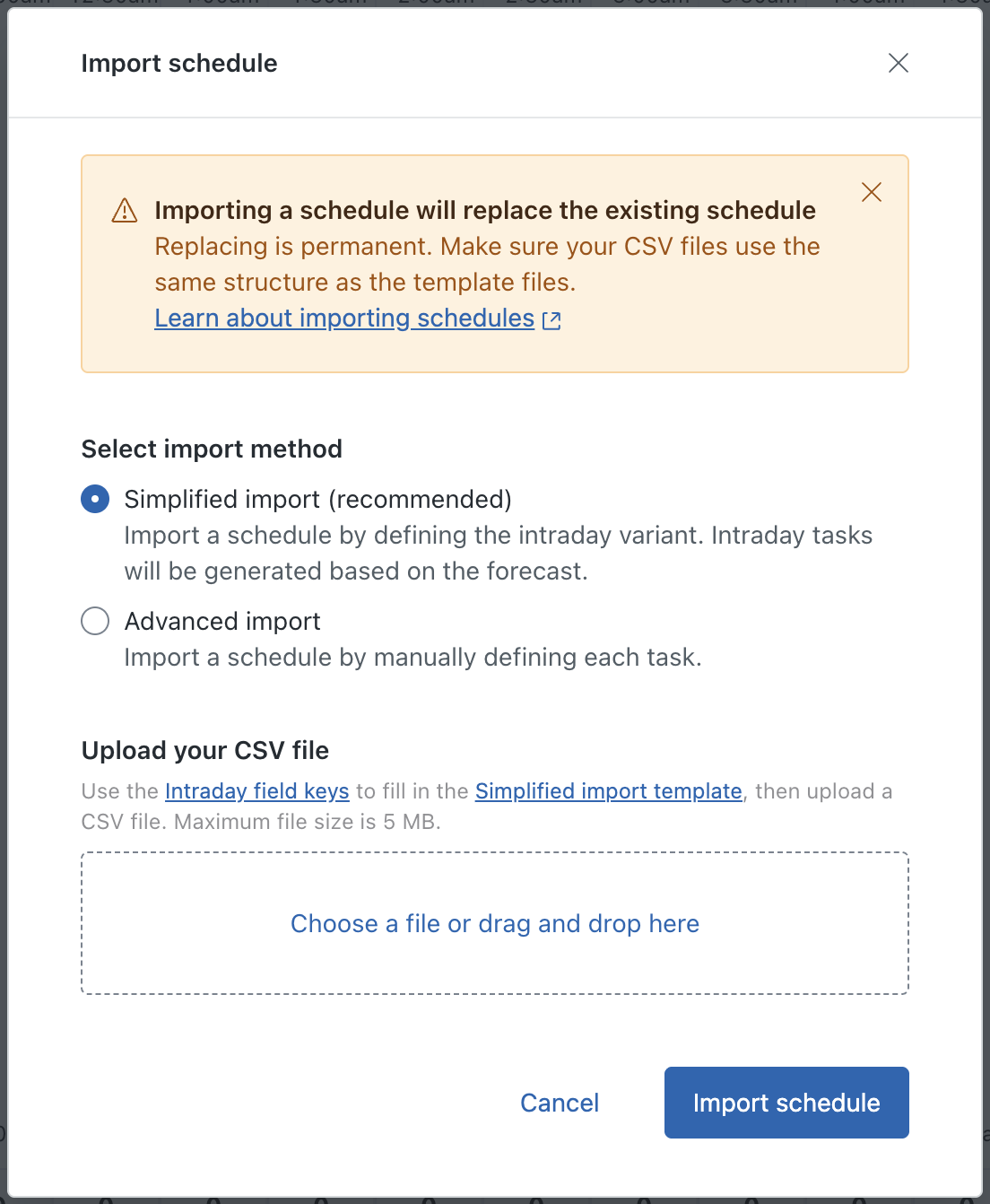
You can now import agent schedules into Zendesk Workforce Management (WFM) using a simplified CSV file. By including just the agent, intraday variant, start time, and date, WFM automatically generates the corresponding shift without requiring you to define each task individually. This feature is available with the Workforce Management add-on.
- Navigate to the Schedules page within Zendesk WFM.
- Click the “Import” button to begin the process.
- Download the simplified CSV template to structure your data correctly.
- Populate the template with agent, intraday variant, start time, and date for each shift.
- Upload the completed CSV file to Zendesk WFM.
- Review the imported shifts to ensure they have been generated correctly.
Zendesk QA Audit Logs
Zendesk Quality Assurance (QA) now integrates with the main Zendesk Admin Center audit log. All significant events related to reviews, scorecards, and workspace changes within QA are recorded, providing administrators with a centralised and auditable trail of activities for improved governance and security. This feature is available with the Quality Assurance add-on.
- Navigate to Admin Center by clicking the gear icon in the sidebar.
- Under Account, select Audit log.
- Use the “Category” filter and select “QA” to view only Quality Assurance events.
- Filter the log by a specific date range or action to investigate events.
- Click on a log entry to view detailed information about the change.
That’s a wrap!
✅ That’s a wrap on the Zendesk October 2026 Release! This month’s updates focus heavily on automation and connectivity, from pausing action flows with wait steps and syncing external knowledge with the Universal Connector, to managing complex workflows in WFM and Employee Services. These features give teams more power and flexibility to build the exact support experience they need.