

After you create this webhook, you’ll be able to update ticket fields via the API from triggers and automations using the Notify > Active webhook action. Many articles, including Get the most from your light agents and Automate Your Bump, Solve & Close, use this webhook to post an internal comment or set a ticket field. It brings a whole new level of control to your triggers and automations.
Create Your Webhook
Here’s how to create a webhook in Zendesk that will access the API with the specified endpoint.
- In the Admin Center, navigate to Apps and Integrations in the sidebar.
- Select Webhooks and then click on Webhooks.
- Click the Create webhook button.
- Select Trigger or Automation > click Next.
- Configure Webhook Settings.
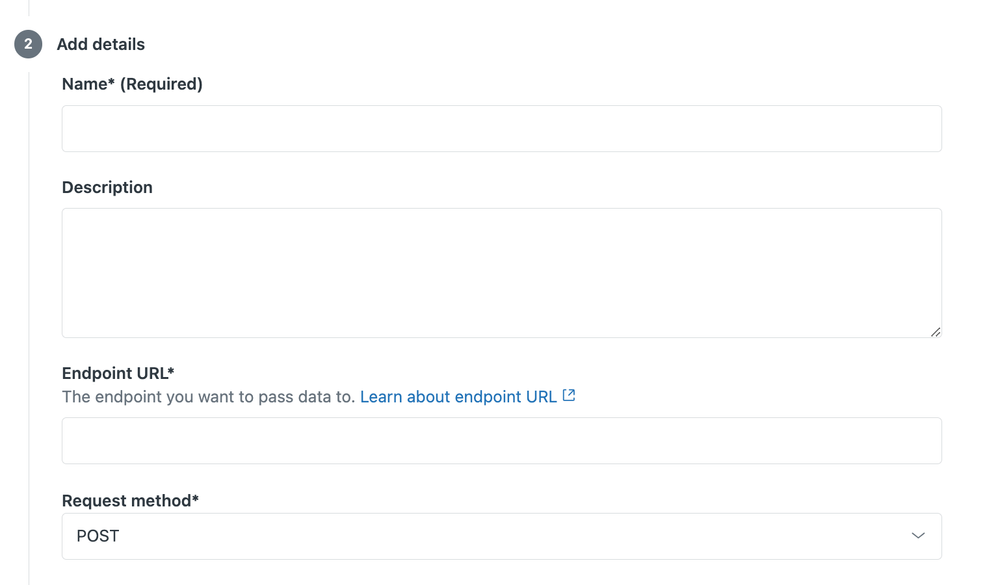
- Name: Choose a descriptive name (e.g., “Update Tickets”).
- Endpoint URL:
https://yoursite.zendesk.com/api/v2/tickets/{{ticket.id}}.json - Request Method: PATCH
- Request Format: JSON
💡 Important Note
Ensure you change “yoursite” in the Endpoint URL to your actual Zendesk URL.
6. Select the Authentication method. Basic authentication is recommended for simplicity.
7. Provide your Zendesk API credentials:
- Username: Your Zendesk admin email address.
- Password: Your Zendesk API token (generate in Admin Center > Account > API).
Optional
- Custom Headers: Add custom headers if needed.
- Test Webhook: Click to send a test request to your endpoint and verify the connection.
Trigger or Automation
This section allows you to connect the webhook to Zendesk events (e.g., ticket creation) or automations. You can skip this if you want the webhook triggered manually.
8. Once configured, click Create Webhook to activate.
You can now use this webhook in triggers or automations to update ticket fields via the Zendesk API.
Recap
Creating this webhook enables you to update ticket fields or post comments via the API from triggers and automations using the Notify > Active webhook action. Many articles, including Get the most from your light agents and Automate Your Bump, Solve & Close, show practical applications of this webhook. It provides a new level of control to your Zendesk setup.
#zendesk