
Every month, Zendesk ships new features and enhancements designed to simplify workflows, boost agent productivity, and unlock deeper AI-driven customer insights. Below is a breakdown of the Zendesk July 2026 release, along with practical steps to get started.
Compare Custom Role Permissions Side-by-Side
You can now select multiple custom roles and view their permissions side-by-side in a comparison matrix. This makes it significantly easier to review differences between roles and update settings without needing to open each role individually. This feature is available on Zendesk Suite Enterprise plans.
- Navigate to Admin Centre and select ‘Roles’ under the People settings.
- Select the checkboxes next to two or more custom roles you wish to compare.
- Click the ‘Compare roles’ button that appears at the top of the list.
- Review the detailed permissions matrix to identify and understand differences.
- Click on any role’s name from the comparison view to directly edit its permissions.
Listen to Audio Attachments in Tickets
Agents can now listen to audio messages attached to email comments directly within the Agent Workspace without having to download the files first. This streamlines the agent workflow, improves efficiency, and enhances accessibility for handling tickets with audio content.

- Open an email ticket that contains an audio file attachment in a comment.
- Locate the audio player embedded directly within the ticket comment stream.
- Click the play button to listen to the audio message in-line.
- Use the player controls to pause or move through the audio as required.
Pause Your Zendesk Account
As an alternative to cancelling, eligible customers can now temporarily pause their Zendesk account for up to three months. This provides flexibility for businesses that may need to suspend their support operations for a short period. This option is available for digital customers with a limited Annual Recurring Revenue (ARR).

- Navigate to the Admin Centre and select ‘Account’ within the Billing section.
- If your account is eligible, locate the option to pause your subscription.
- Click the ‘Pause Account’ button to begin the process.
- Follow the on-screen prompts to confirm the pause duration.
Forethought AI agents by Zendesk
The powerful Forethought AI agents are now available for purchase, offering autonomous resolution for customer inquiries. These AI agents can identify user intent, automate complex tasks, provide real-time assistance to human agents, and deliver actionable insights. This feature is available as a paid add-on.
- Contact your Zendesk account representative to purchase the Forethought AI agents add-on.
- Once enabled, access the AI agents configuration within Admin Centre.
- Define the intents and build the automated procedures for the AI agent to handle.
- Connect your knowledge sources to provide the AI agent with accurate information.
- Deploy the AI agent on your desired messaging or email channels.
- Monitor performance and refine the AI agent’s behaviour over time.
Connect Google Drive as a Knowledge Source
You can now connect Google Drive as an external content source, making your documents, spreadsheets, and presentations available within Zendesk. This content can be surfaced in help centre searches, used by generative search, leveraged by AI agents, and accessed by human agents in the Agent Workspace.
- Go to Admin Centre, then navigate to ‘Knowledge’ in the sidebar.
- Select ‘External content’ and click ‘Add source’.
- Choose Google Drive from the list of available integrations.
- Authenticate with your Google account and grant the necessary permissions for Zendesk to access your files.
- Configure which folders and files should be synced.
- Initiate the first sync and wait for your Google Drive content to become searchable.
End-User Presence Detection for Messaging
Improve agent efficiency by turning on end-user presence detection for messaging channels. This feature identifies if a user is still active on your website or app, marking sessions as inactive if they leave. This allows you to better manage agent capacity and create automated workflows to handle abandoned conversations.
- Navigate to Admin Centre and select ‘Messaging’ under the Channels settings.
- Choose the specific Web Widget or mobile SDK integration you want to configure.
- Find the setting for ‘End-user presence detection’ and switch it on.
- Go to ‘Objects and rules’ and create new triggers that use the ‘Conversation abandoned’ condition.
- Configure actions for your trigger, such as sending a follow-up email or automatically solving the ticket.
Restrict Outbound Calling by Agent Group
Admins can now restrict which agent groups are permitted to make outbound calls using specific phone lines in Zendesk Voice. This provides more granular control over your voice operations, helping to prevent costly or misrouted calls by ensuring agents only use their designated lines.
- In Admin Centre, go to the Channels section and click on Voice.
- Select the ‘Lines’ tab and click on the phone number you wish to configure.
- On the settings page for that line, scroll to the ‘Outbound calls’ section.
- Enable the option to restrict outbound calls to specific groups.
- Select the agent groups that should be allowed to use this line for outbound dialling.
- Click ‘Save’ to apply the new restriction.
Free Workforce Management Experience for Suite Professional Plans
Teams on Zendesk Suite Professional plans and higher now have access to a Zendesk Workforce Management (WFM) experience at no extra cost. This provides visibility into agent activity and daily average handle time (AHT) for the past 24 hours, helping managers understand workload trends and improve planning.

- Ensure your account is on the Zendesk Suite Professional plan or a higher tier.
- Click the square ‘Zendesk products’ icon in the top-right of the navigation bar.
- Select ‘Workforce Management’ from the list of products.
- Explore the Agent Activity view to see how agents are spending their time.
- Analyse the Average Handle Time (AHT) data to identify trends and coaching opportunities.
Quality Assurance Coaching Dashboard
A new Coaching dashboard is now available in Zendesk Quality Assurance (QA). It provides a central overview of all coaching sessions, feedback reviews, and the direct impact of coaching on your team’s Internal Quality Score (IQS). This feature requires the Zendesk Quality Assurance add-on.
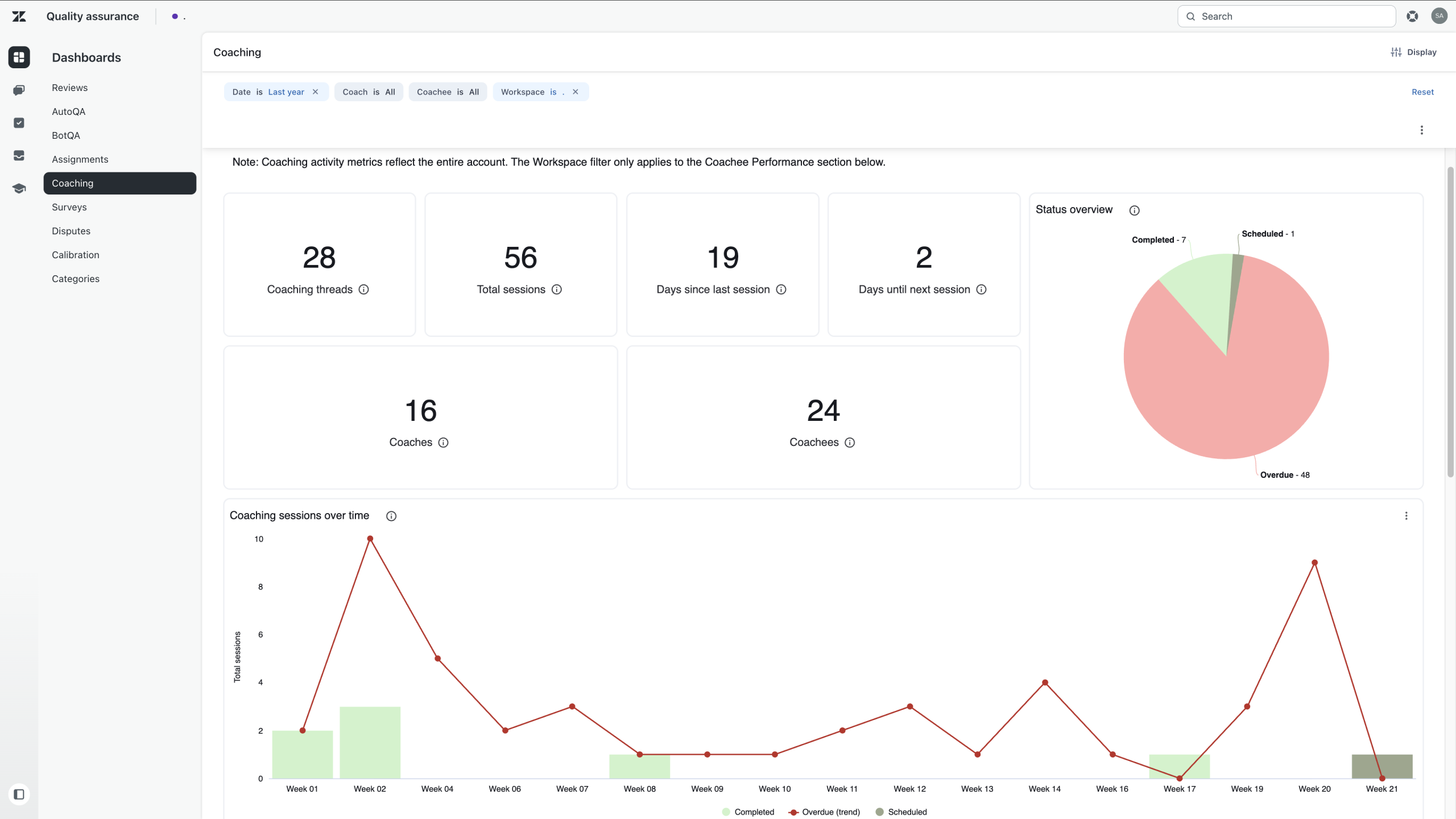
- Open Zendesk QA from the product switcher in the top navigation bar.
- Click on the ‘Coaching’ tab to access the new dashboard.
- Use the filters at the top to focus the data by date range, coach, or coachee.
- Review the charts to track coaching session status and analyse trends over time.
- Drill down into specific sessions to review feedback and outcomes.
New Action Builder Connectors
The action builder has been enhanced with five new connectors: HubSpot, Chargebee, Stripe, Calendly, and GitHub. These integrations allow you to build automated flows that connect Zendesk with your core business systems, automating tasks related to CRM, billing, scheduling, and engineering directly from a ticket.
- Go to Admin Centre, then ‘Apps and integrations’, and select ‘Action builder’.
- Create a new action flow or edit an existing one.
- When adding a step to your flow, select one of the new connectors like HubSpot or Stripe.
- Follow the prompts to authenticate the connection with the third-party service.
- Configure the specific action, such as ‘Create a deal’ in HubSpot or ‘Look up a subscription’ in Stripe.
- Incorporate this new action into a trigger to automate the workflow for your agents.
That’s a wrap!
✅ That’s a wrap on the Zendesk July 2026 Release! This month’s updates focus on expanding platform capabilities and providing more granular administrative control. From making WFM more accessible and launching Forethought AI agents to introducing new integrations and role-based restrictions, teams of all sizes have powerful new tools to customise and automate their operations.