Zendesk continues to roll out enhancements to its platform on a near-daily basis. Keeping up can be a challenge, but we’re here to provide the expert analysis you need. Here’s our take on a recent WFM update from June 2026.
Zendesk Time Off Reasons Finally Get the Granularity WFM Admins Have Been Asking For
What We Think:
This is a small but mighty update for anyone using Zendesk WFM. The ability to control visibility for Zendesk time off reasons by team is a fundamental improvement that moves the platform towards greater operational maturity. For organisations with teams across different regions, or with varying leave policies, this change is a massive win. It will reduce errors, clean up the agent interface, and give managers more precise control. While Zendesk is handling the initial migration to prevent disruption, the real value will only be unlocked when you take the time to configure these new settings. We’re giving this a solid thumbs-up.
The Reality Check: What’s Actually Changing?
Let’s cut through the jargon. Until now, every single time off reason you created in Zendesk WFM was visible to every single agent in your account. This was a messy, one-size-fits-all approach. An agent in your Dublin office would see options for US public holidays, and a general support team might see leave types reserved for a specialised “Tier 3” team.
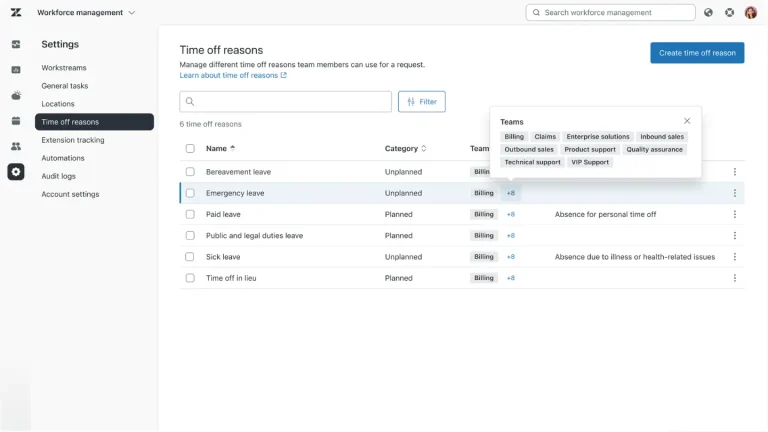
With this change, Zendesk is adding a “Teams” setting to each time off reason. This means you, as an admin or manager, can now decide precisely which team (or teams) can see and select each reason. When an agent goes to request leave, they’ll only see the options that are relevant to them. It’s a simple concept, but one with a significant impact on day-to-day operations and data cleanliness.
Our Expert Opinion: Why This Matters More Than You Think
Our take is that this isn’t just a minor user interface tweak; it’s a critical step forward for accurate workforce management. The lack of granularity was a persistent frustration for many of our clients, especially as they scaled.
The biggest impact is on error reduction. When agents are presented with a long, confusing list of leave types, mistakes are inevitable. They might request a “California-only” holiday when they’re based in Cork, creating unnecessary work for their manager who has to deny the request, explain why, and have the agent resubmit. By curating the list, you eliminate this entire category of errors.
Another key benefit highlighted in the announcement is the ability to create manager-only leave types. This is a clever use case. Imagine you need a reason like “Manager Discretionary Leave” or “Performance Bonus Day Off.” You don’t want agents requesting this themselves, but you need it available in the system for managers to assign manually in the Schedule. Now, you can create the reason and simply not assign it to any agent-facing teams, making it a back-end tool for managers and admins only.
Finally, this is about providing a better agent experience. A clean, relevant dropdown menu is less intimidating and more efficient. It shows that the system is tailored to their specific role and location, which is a small but important part of making them feel supported.
How We’d Handle the Rollout: A Practical Action Plan
Zendesk has smartly ensured that the rollout itself won’t break anything. They’re automatically assigning all your existing teams to all your existing time off reasons, so everything will function exactly as it does today. However, doing nothing means you get no benefit from this new feature. The real work begins after the feature is live in your account.
Here is what we’re advising our clients to do:
| Phase | Action Step | Our Expert Advice |
|---|---|---|
| 1. Audit & Map | Review Your Current Reasons | Before touching any settings, export or list all your current time off reasons. Do any of them need to be renamed for clarity? Are any obsolete and can be deactivated? Now is the perfect time for a spring clean. |
| 2. Strategise | Map Reasons to Teams | Create a simple spreadsheet. In one column, list your time off reasons. In the next columns, list your teams. Put an “X” where a reason should apply to a team. Think about geography (public holidays), team policies (specialist leave), and roles (manager-only types). |
| 3. Configure | Use Bulk Actions | Once your map is ready, go to the “Time off reasons” page in your Admin settings. Zendesk has included bulk actions, so you can select multiple reasons at once and add or remove team assignments. This will save you a huge amount of time compared to editing them one-by-one. |
| 4. Validate | Test with a Pilot Group | Pick a friendly manager and a couple of agents from one team. Ask them to log in and attempt to request time off. Verify that they only see the options you’ve assigned to them in your map. This step catches any mistakes before you roll it out widely. |
| 5. Communicate | Inform Your Staff | Send a brief communication to managers and agents. Let them know you’ve cleaned up the leave request options to make them more relevant. This pre-empts any “Hey, where did the XYZ leave option go?” questions. |
| 6. Document | Update Internal Guides | If you have internal documentation on how to request time off, update any screenshots or instructions. For more detail on the settings, refer to Zendesk’s guide on creating and managing time off reasons. |