
Every month, Zendesk ships new features and enhancements designed to simplify workflows, improve agent productivity, and deepen AI-driven customer insights. Below is a breakdown of the Zendesk November 2025 release with updates, along with practical steps to get started.
Missed our previous round-ups?
- 🚀 Zendesk October 2025 Release: Key Features & How to Use Them
- Zendesk’s September 2025 Updates – What’s important for SMBs
- What SMBs Need to Know from Zendesk’s August 2025 Updates
1. AI Ticket Summaries Now Include Internal Comments
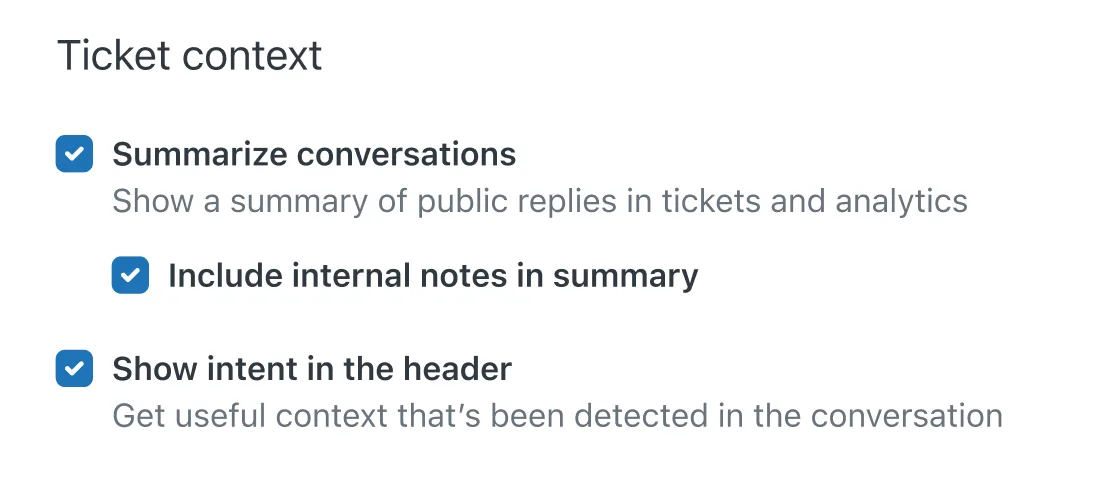
This is a fantastic quality-of-life update. The AI-generated ticket summarization has been enhanced to not only have an expanded word limit but also to capture a ticket’s internal comments. This means agents or managers jumping into a complex ticket can get the full context—including private team discussions—in seconds, without reading the entire thread.
Requires Add-On? Yes, this feature is part of the AI-generated ticket summaries, which require an Advanced AI / Copilot add-on.
How to Implement
- As an administrator, navigate to Admin Center.
- Go to AI > AI features (or a similar path) and find the settings for AI-generated ticket summaries.
- Ensure the feature is turned on.
- You will now see a new configuration option to Include internal comments in the summary. Check this box.
- Click Save.
2. Get Live Insights with Real-Time Monitoring Dashboards
If you’ve ever felt like you’re looking in the rearview mirror, this one’s for you. Zendesk Analytics has a new real-time monitoring space. This isn’t just your standard daily report; it features three new dashboards built for supervisors that provide granular, up-to-the-minute visibility:
- Incoming tickets
- Ticket progress
- Agent productivity
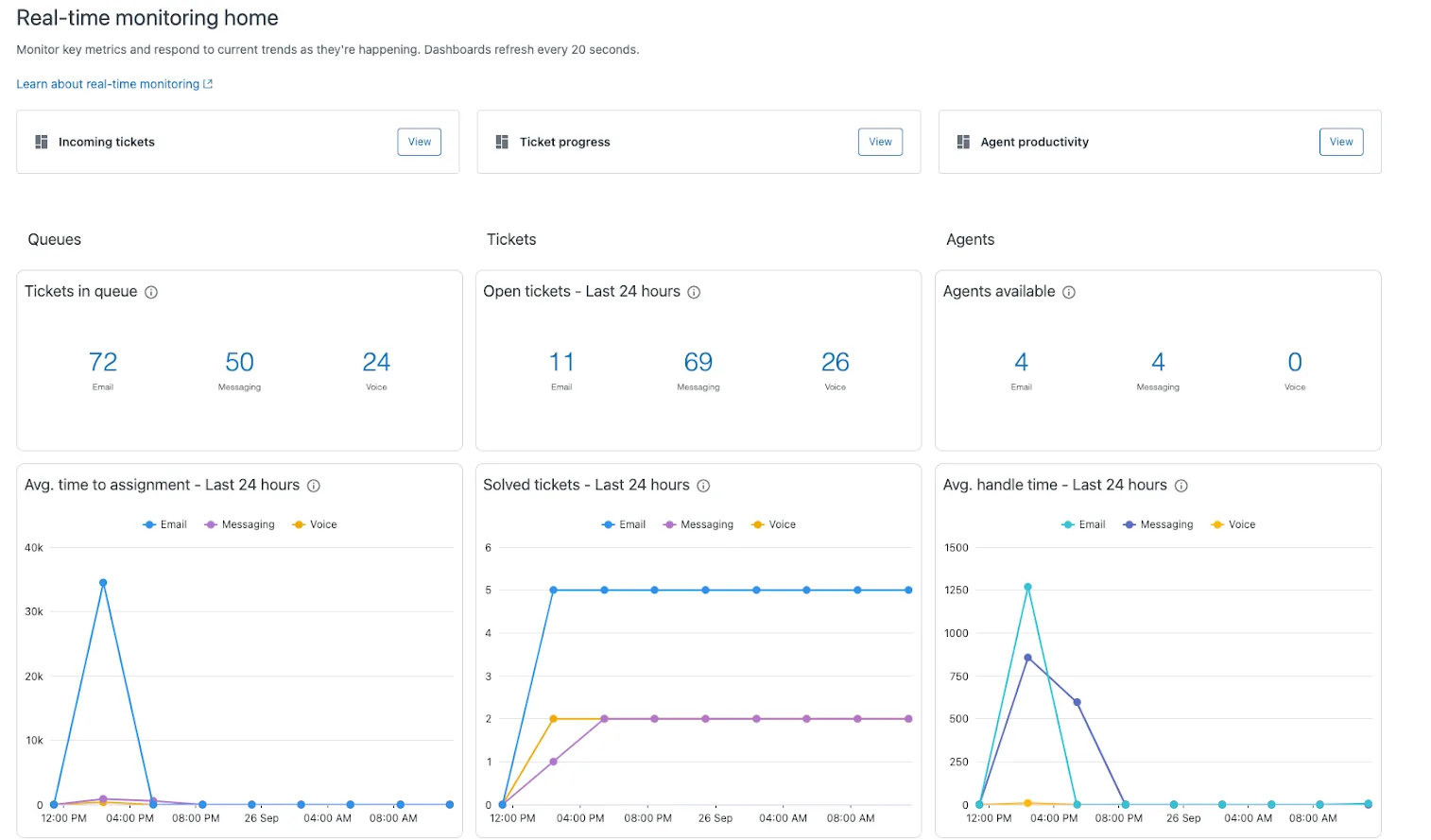
Requires Add-On? No, this is a new feature within Zendesk Analytics. Access to Analytics depends on your Zendesk Suite plan (typically Professional and above).
How to Implement
- In your Zendesk account, navigate to Analytics by clicking the product icon (four squares) in the top-right bar.
- Select Analytics from the menu.
- Inside Analytics, you will find the new Real-time monitoring home, which contains the three new dashboards.
3. Create Reports Just by Asking with AI-Powered Quick Reports
This is a game-changer for managers. Instead of fumbling with metrics and attributes in the report builder, you can now use AI-powered quick reports. Simply type a question in plain English, and Zendesk generates the report for you instantly.
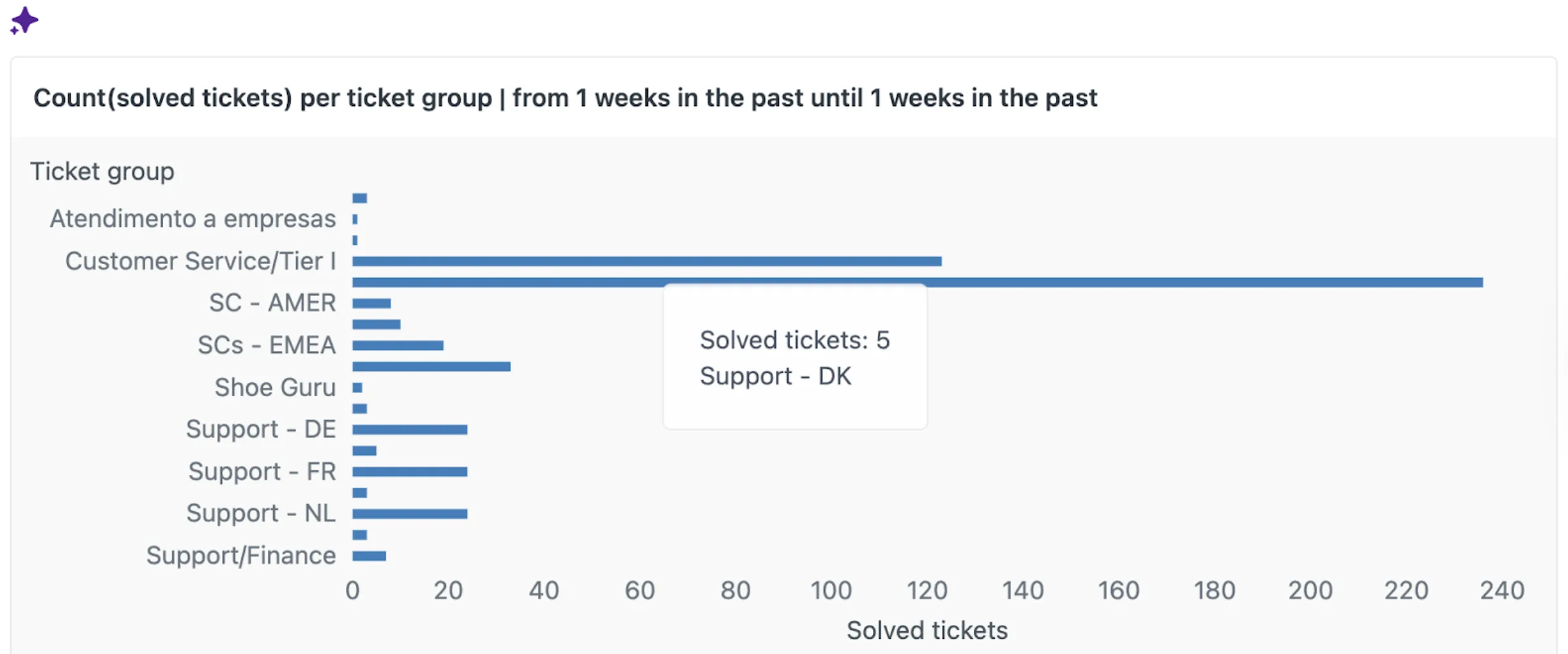
For example, ask, “In the past week, which group solved the most tickets?” and the report appears.
Requires Add-On? Yes, as a generative AI feature, this requires an Advanced AI / Copilot add-on.
How to Implement
- Navigate to Zendesk Analytics (Explore).
- Go to your Reports library.
- Look for the new “Quick reports” button or interface.
- In the prompt bar, type your question in natural language.
- The AI will generate and display the report based on your query.
4. Connect Your Confluence Knowledge Base
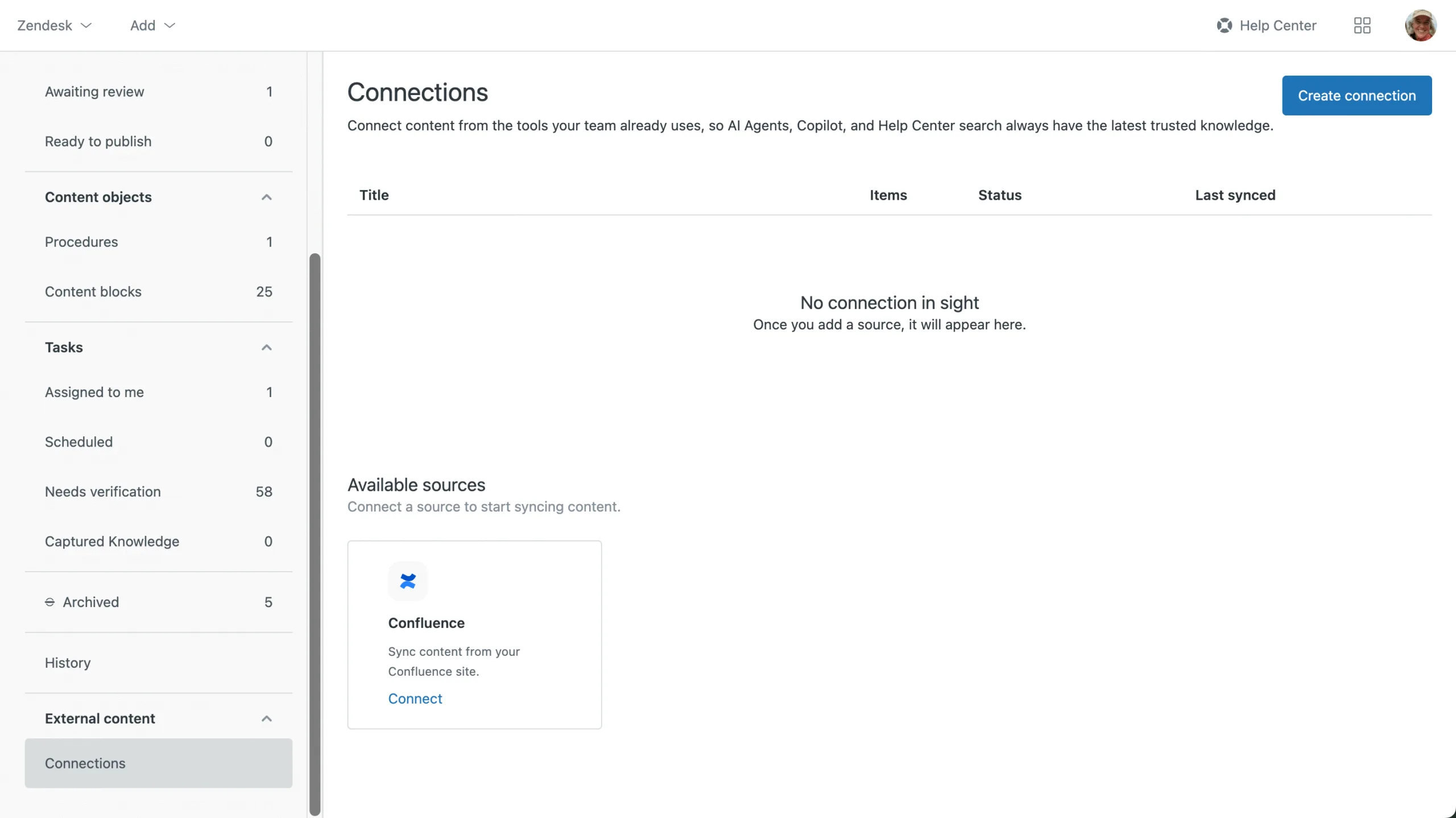
Many teams use Confluence as their internal wiki. Now, a new knowledge connector for Confluence is available. This allows you to connect your Confluence sites and ingest that content into Zendesk. This content can then be used to:
- Power generative search in the help center.
- Provide answers for Advanced AI agents.
- Surface results for human agents in the Agent Workspace.
Requires Add-On? The connector itself is part of Zendesk Knowledge. However, using the synced content to power Advanced AI agents requires the Advanced AI / Copilot add-on.
How to Implement
- In Admin Center, navigate to the Knowledge section.
- Find the settings for External content > Connections.
- Click Create connection.
- Under “Available sources,” you will see an option for Confluence.
- Click Connect and follow the authorization prompts to link your Confluence site and select the spaces you wish to sync.
5. Automate (Everything) with Action Builder – Now Generally Available!
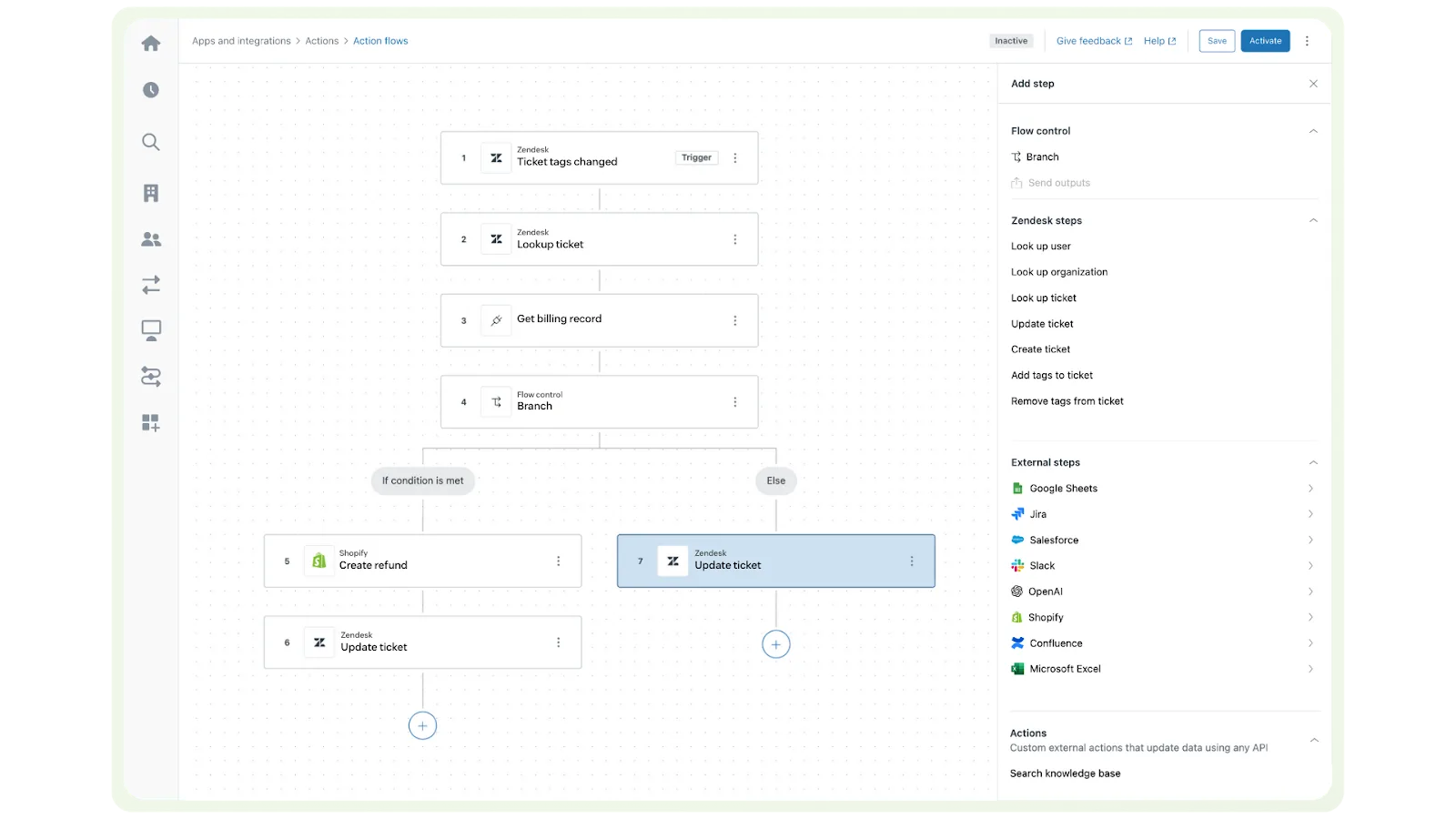
Zendesk’s powerful, no-code, visual workflow tool, Action builder, is now generally available (GA) for everyone to use. This tool lets you automate processes across multiple systems. For example, you can build a flow that, when a ticket tag is changed:
- Looks up a billing record in an external system.
- Checks a condition (e.g., “If condition is met”).
- Automatically updates the ticket or creates a refund.
Requires Add-On? No, the Action builder is now generally available. Using it with AI agents would, however, require the AI add-on.
How to Implement
- In Admin Center, go to Objects and rules.
- You will find Action builder or Action flows in the menu.
- From here, you can create a new flow, connect to external systems (like Google Sheets, Shopify, Slack), and define the steps in your visual workflow.
6. Check Your Account’s Security at a Glance
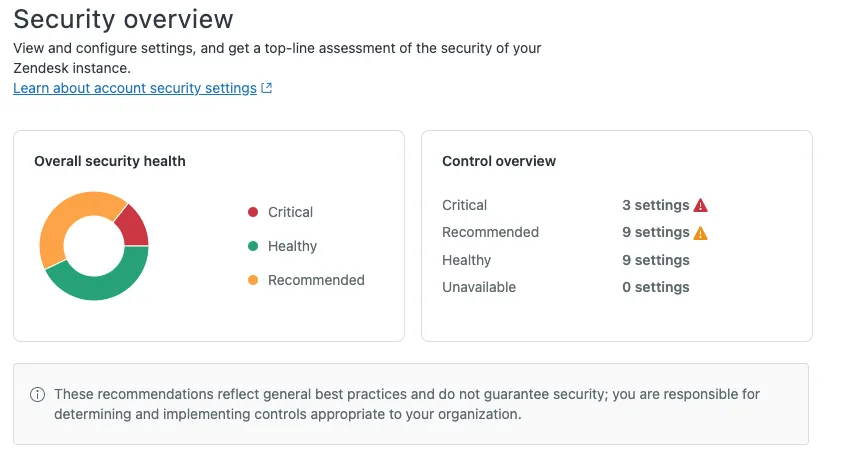
A new security dashboard is now available to help you assess and improve your account’s security posture. This dashboard gives you a top-line assessment of your Zendesk instance, flagging potential risks and offering clear recommendations for best practices. It provides ratings (like “Critical,” “Recommended,” “Healthy”) for settings like two-factor authentication, password settings, and session expiration.
Requires Add-On? No, this appears to be a new standard feature in Admin Center.
How to Implement
- As an admin, navigate to Admin Center.
- Look for a new Security section or dashboard, likely under your main account settings.
- On the Security overview page, review your “Overall security health” and “Control overview”.
- Review the list of settings (e.g., “Authentication”) and their current status and rating to identify and fix critical security gaps.
7. Simplify Your Knowledge Base with an Easier Web Crawler
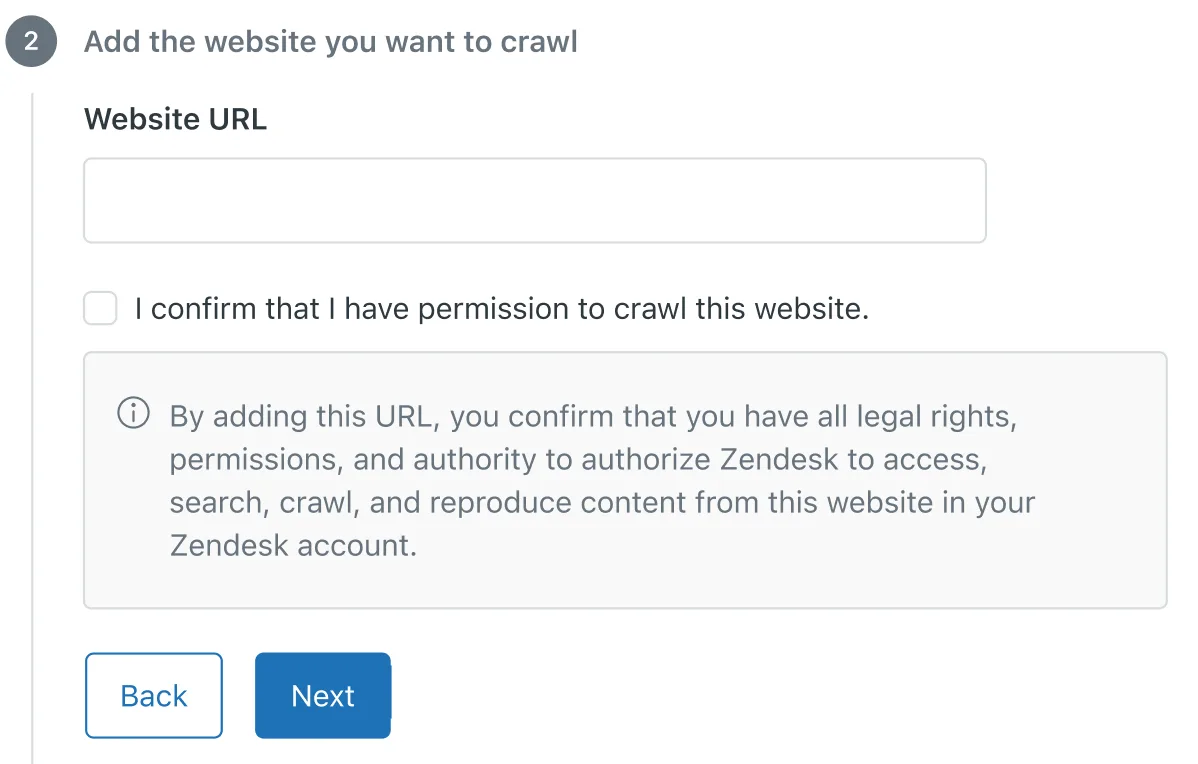
If you have knowledge in external websites (like a blog or a non-Zendesk FAQ), the web crawler setup process has been simplified. You can now configure the crawler (part of Federated Search) without needing to add a special verification tag to your website’s code. This is a huge win for less-technical admins.
Requires Add-On? No, this is an update to the Federated Search feature within Zendesk Knowledge.
How to Implement
- Go to Admin Center and navigate to your Knowledge settings.
- Find the setup for Federated Search or Web Crawler.
- When adding a new source, simply enter the URL of the domain you want to crawl.
- You will now see a disclaimer. Accept the disclaimer to confirm you have the right to crawl that content.
- That’s it. The crawler will begin indexing without any code changes on your site.
8. Improve AI Quality with Agent Feedback on Auto Assist
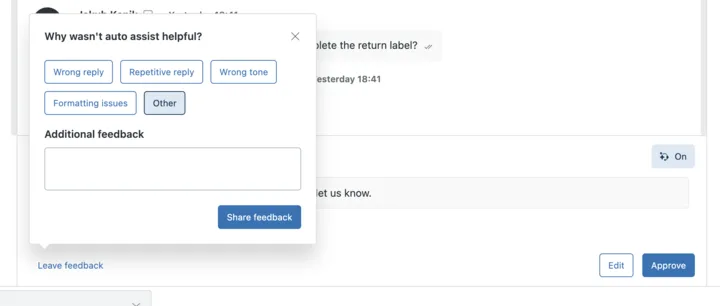
Your agents can now provide direct feedback on the suggestions given by Auto Assist. When Auto Assist suggests a reply, agents will see a “Leave feedback” option in the composer. This allows them to quickly flag if a suggestion was helpful, inaccurate, or irrelevant, helping to train the AI and improve the quality of future suggestions.
Requires Add-On? Yes, this is an enhancement for Auto Assist, which is part of the Zendesk Copilot add-on.
How to Implement
- This feature is automatically available for any account using Auto Assist.
- Instruct your agents to start using the “Leave feedback” feature located in the auto assist composer.
- When a suggestion appears, they can click this button to provide their feedback.
That’s a wrap!
✅ That’s a wrap on the November 2025 Zendesk Release!
👉 Ready to put these features to work in your organisation? Let’s chat about tailoring them to your support setup: Book a call today↗