
Every month, Zendesk releases a host of new features and improvements designed to streamline agent workflows, enhance administrator efficiency, and provide deeper AI-powered insights. Here is a summary of the key updates from the Zendesk June 2026 release, including practical steps to help you get started.
IT asset management (ITAM)
Track, monitor, and manage your company’s technology assets directly within Zendesk Support using the new IT asset management (ITAM) feature, which is now generally available. This provides a unified platform to integrate device details into ticket workflows, helping agents resolve IT issues more efficiently. Your plan includes up to 500 asset records, with the option to purchase more. This feature is available on Zendesk Suite plans.
- Navigate to Admin Center and click the Objects and rules icon in the sidebar.
- Select Custom objects from the Objects section.
- Find the IT asset object, click the menu icon, and select Turn on.
- Confirm the action to enable IT asset management for your account.
- Add the Assets panel to your ticket contexts in Agent Workspace to allow agents to view and link assets.
- Begin importing your asset records via the API or a CSV file.
Admin copilot
Optimise your Zendesk setup with Admin copilot, an AI-powered assistant now available at no additional cost. It offers AI-driven insights, personalised recommendations, and conversational assistance to help administrators identify and implement configuration improvements. This feature is available for all Zendesk Suite Professional and above accounts.
- Navigate to Admin Center by clicking the four-squares icon in the top bar of any product.
- Click the Copilot icon in the top bar to open the admin copilot panel.
- Explore the Home tab for personalised insights and recommendations about your instance.
- Use the Chat tab to ask questions about your Zendesk setup in natural language.
- Review the recommended actions and click them to navigate directly to the relevant settings page to make changes.
AI ticket summary
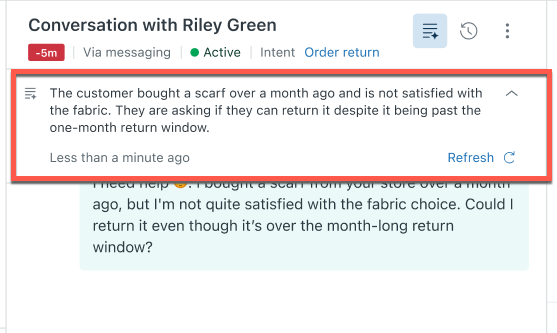
Improve agent productivity with AI-driven ticket summaries, now available with capped usage. This tool generates clear, actionable overviews from long and complex ticket conversation histories, allowing agents to get up to speed quickly with zero setup required. A monthly allowance of 5 AI tool uses per agent is pooled across the team, with a maximum of 500 uses per month. This is available for Suite and Support Professional plans and above.
- In Admin Center, navigate to the AI section under Spaces.
- Select Copilot from the AI-powered tools menu.
- Activate the Summarise tickets feature by toggling it on.
- Open any ticket with multiple comments in the Agent Workspace.
- Click the “Summarise” button at the top of the ticket to generate an AI-powered summary of the conversation.
PDF preview in the Agent Workspace
Enhance agent workflow and security with the new native PDF previewer in the Agent Workspace. Agents can now view PDF attachments directly within the ticket interface without having to download them to their local machine. This provides a more seamless experience and improves security by reducing the need for local file downloads.
- Open a ticket in the Agent Workspace that contains a PDF attachment.
- Locate the attachment in the ticket comment stream.
- Click on the PDF file name or the preview icon to open the inline viewer.
- Review the PDF’s contents within the ticket interface.
- Close the preview to return to the main ticket view.
Task lists enhancements
Ensure greater process adherence and improve task list management with several new enhancements. You can now require all tasks in a list to be completed before a ticket can be solved. Additionally, new options to activate, deactivate, and clone task lists make management more flexible and scalable for complex workflows.
- Navigate to Admin Center and click the Workspaces icon in the sidebar.
- Select Agent tools and then click Task lists.
- Create a new task list or choose an existing one to edit.
- Select the “Require all tasks to be completed before solving a ticket” option to enforce completion.
- Use the “Activate” or “Deactivate” options from the menu to manage the availability of task lists to agents.
- Choose “Clone” from the menu to quickly create a copy of an existing task list for modification.
Automatic link discovery for web crawler
Simplify the process of indexing your external website content with automatic link discovery for the web crawler. This feature allows the crawler to automatically discover and index content by following links throughout your website, removing the need for a sitemap or manual page specification. The crawler can also now handle complex, nested sitemap structures automatically.
- In Admin Center, navigate to Content under the AI and bots section.
- Select Knowledge from the menu.
- Click “Add knowledge source” and choose “Web crawler”.
- Enter the starting URL of the website you wish to index.
- Ensure the “Automatic link discovery” option is enabled during setup.
- Initiate the crawl and allow the system to automatically follow all links to index your site’s content.
Guru as a knowledge source
Integrate your Guru knowledge base directly with your Zendesk account. By connecting Guru as a knowledge source, you can make its content accessible for help centre search, generative search, AI agents, and the Knowledge panel in the Agent Workspace, providing a more unified knowledge experience for customers and agents.
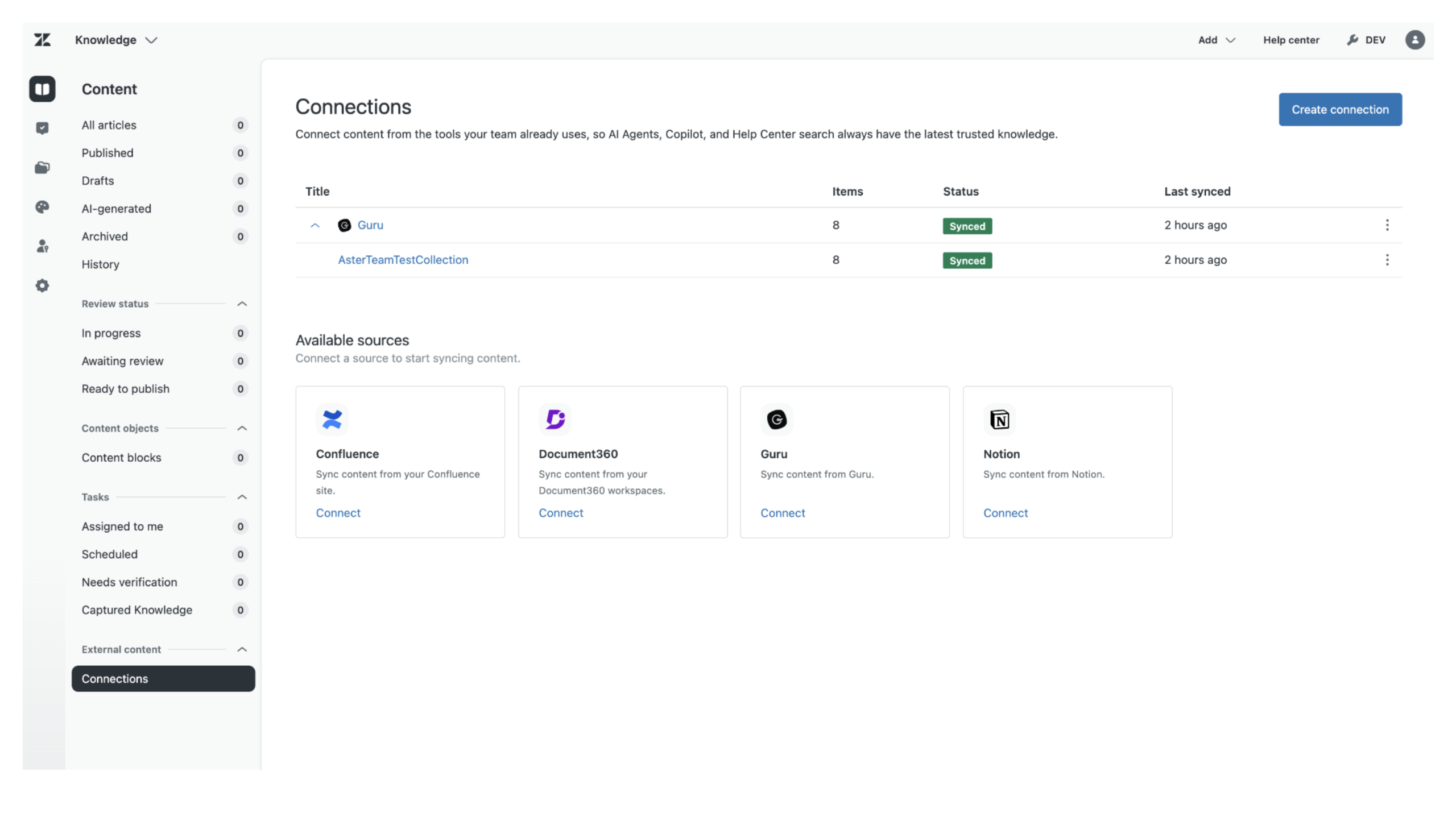
- In Admin Center, navigate to the Content section and select Knowledge.
- Click on “Add knowledge source” and select Guru from the available options.
- Enter your Guru account details and the required API credentials to establish the connection.
- Configure the sync settings to specify which Guru collections should be indexed.
- Activate the knowledge source to begin the content synchronisation process.
Agent adherence real-time dashboard
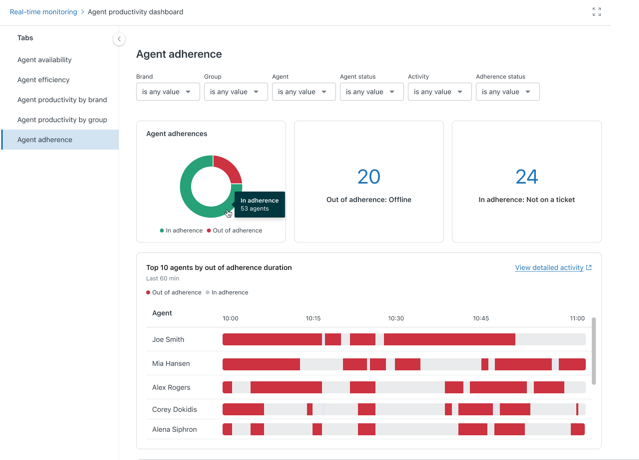
Track your team’s adherence to their planned schedules with the new agent adherence real-time dashboard. This tool provides workforce managers and supervisors with detailed reports and visualisations to monitor agent activity against their schedules in real time. This dashboard requires the Zendesk Workforce Management add-on.
- Ensure you have the Workforce Management add-on for your Zendesk plan.
- Click the Reporting icon in the top bar and select “Real-time monitoring”.
- From the list of available dashboards, select the “Agent productivity” dashboard.
- Click on the “Agent adherence” tab to access the new real-time view.
- Use the dashboard to monitor adherence and identify any deviations from the schedule.
Group sync between Zendesk and Zendesk QA
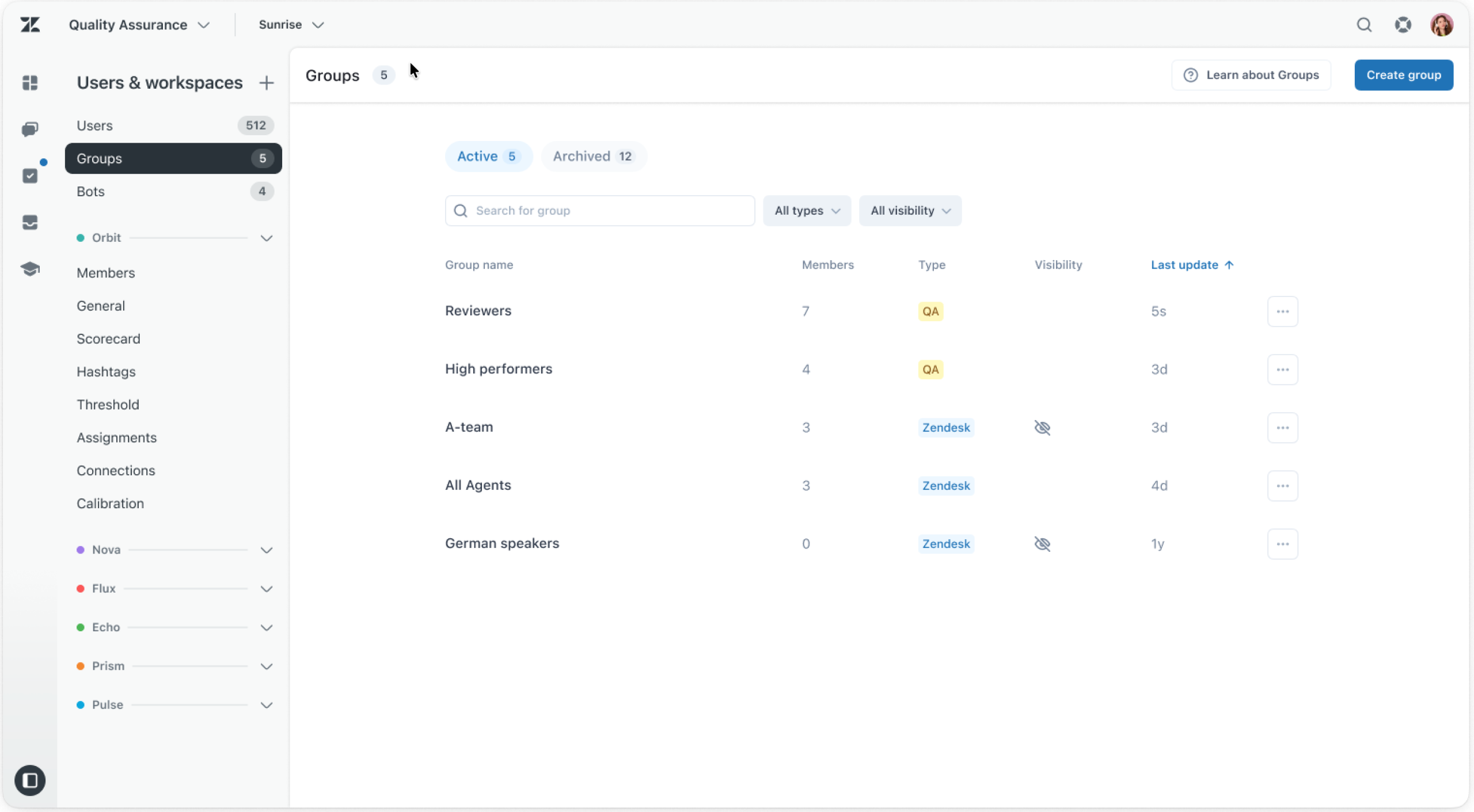
Eliminate manual updates and streamline user management with automatic group synchronisation between Zendesk Support and Zendesk QA. This feature automatically syncs your agent groups (excluding private groups) from Zendesk to your QA platform, ensuring that your user structures are always aligned. This feature requires the Zendesk Quality Assurance add-on.
- Log in to your Zendesk QA account.
- Navigate to the user or group management settings area.
- Confirm that the automatic group sync feature is enabled for your account.
- Henceforth, perform all group management tasks within the Zendesk Admin Center.
- Verify that any new groups, name changes, or deletions in Zendesk are reflected automatically in Zendesk QA.
Zendesk Support Assistant for Microsoft Agent 365
Bring your Zendesk workspace directly into Microsoft Teams with the new Zendesk Support Assistant for Microsoft Agent 365. This integration allows agents to manage support tickets, search help centre articles, track IT assets, and perform other key tasks without ever leaving the Teams interface, creating a more integrated and efficient work environment.
- Open your Microsoft Teams client and navigate to the Apps marketplace.
- Search for “Zendesk Support Assistant” and select it from the search results.
- Click to add the application to your Teams environment.
- Follow the on-screen instructions to connect and authenticate your Zendesk account.
- Begin managing support activities directly within Microsoft Teams.
That’s a wrap!
✅ That’s a wrap on the Zendesk June 2026 Release!