
Every month, Zendesk ships new features and enhancements designed to simplify workflows, improve agent productivity, and deepen AI-driven customer insights. Below is a breakdown of the Zendesk January 2026 release with updates, along with practical steps to get started.
Missed our previous round-ups?
- 🚀 Zendesk December 2025 Release: Key Features & How to Use Them
- Zendesk’s November 2025 Updates – What’s important for SMBs
- What SMBs Need to Know from Zendesk’s October 2025 Updates
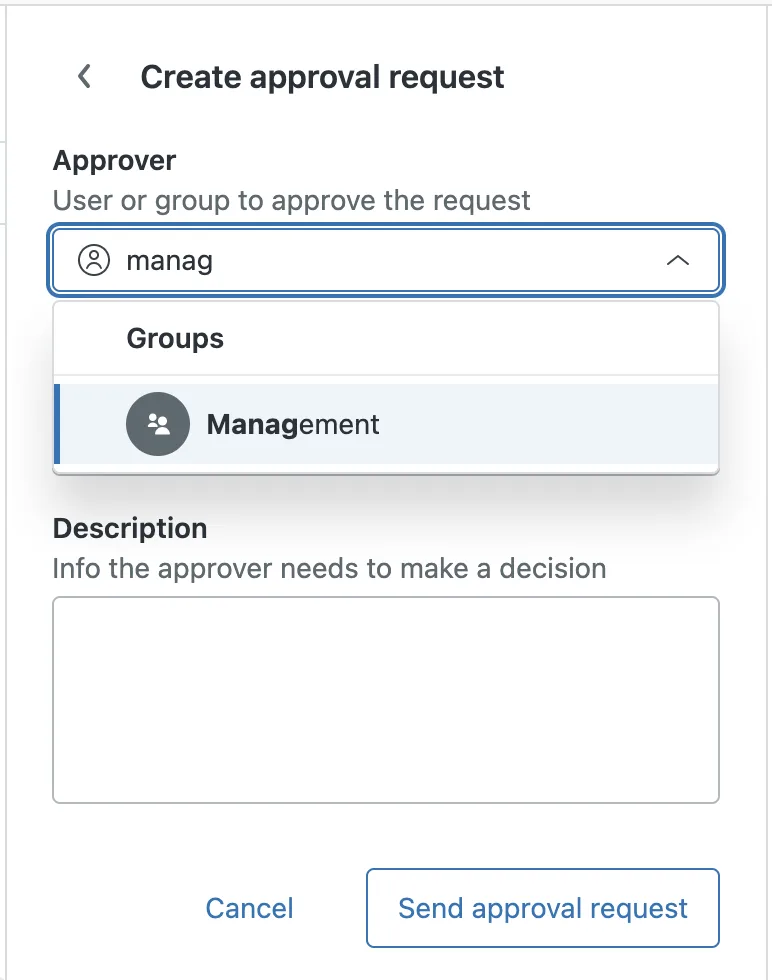
1. Group Assignments for Approval Requests
This update solves a common bottleneck for SMBs with shared administrative duties. Instead of assigning an approval request to a single person, you can now assign it to an entire group of agents. This ensures that any available team member can review and complete the request, preventing delays if one person is out of the office.
Requires Add-On? No, this is a core improvement to approval workflows.
How to Implement:
- When creating or editing an approval process, look for the Approvers configuration.
- Choose the Group option and select the desired agent group from your list.
- Click Save to apply the change.
2. Intelligent AI Filters in Zendesk QA
Zendesk QA now features Intelligent Filters, which use AI to automatically identify specific conversation conditions. Instead of manually hunting for issues, you can now instantly surface “frustrated AI interactions” or “agent escalations”. These can be combined with existing filters and used in assignments to streamline your quality coaching.
Requires Add-On? Yes, this feature is part of Zendesk QA.

How to Implement:
- Open your Zendesk QA dashboard.
- Navigate to the Conversations view in the left sidebar.
- Click on the Filter icon to open the filter menu.
- Look for the new Intelligent Filters section.
- Select one of the predefined conditions, such as Frustrated AI agent conversations or Agent escalations.
- Click Apply to view the filtered interactions.
3. Advanced Escalation Control for Email AI Agents
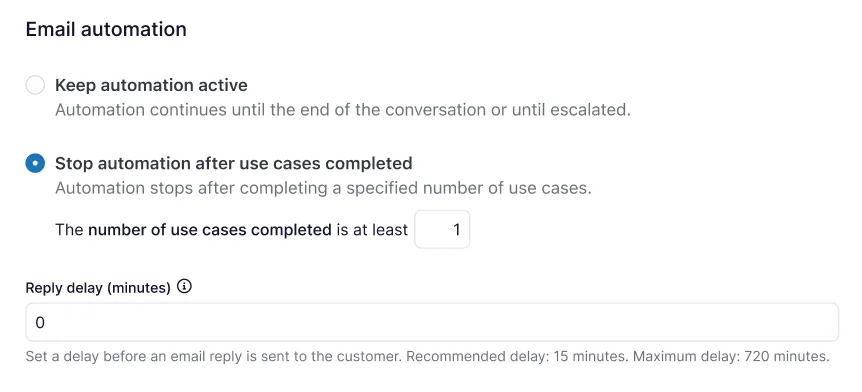
You now have much tighter control over when your AI agent hands over a conversation to a human. For advanced email AI agents, you can add escalation blocks directly into dialogues. Crucially, you can also define exactly how many use cases the AI agent should attempt to complete before it is required to escalate to a human.
Requires Add-On? Yes, this requires the Advanced AI / Copilot add-on.
How to Implement:
- In Admin Center, go to AI agents and select your email-based bot.
- Add an Escalation block to your dialogue.
- Go to Settings > AI Agents Settings > General.
- Select Stop automation after use case completed.
4. Custom File Type Allowlist for Improved Security
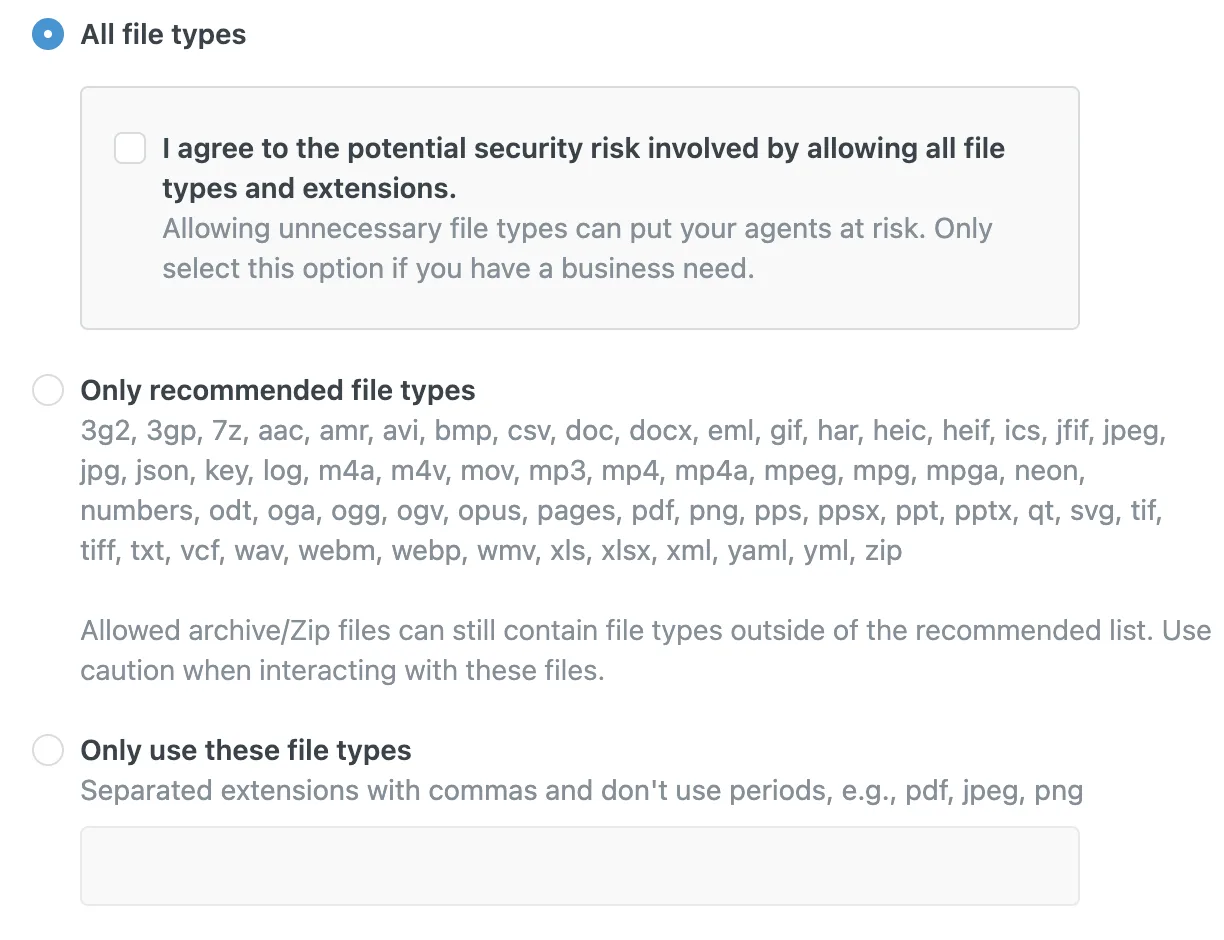
To help SMBs protect their instances from malicious uploads, Zendesk has introduced a custom file type allowlist. Admins can now specify exactly which file extensions agents and end users are allowed to upload to tickets. This ensures that only safe, relevant files like PDFs or images are accepted while blocking potentially dangerous scripts.
Requires Add-On? No, this setting is available on all plans in the Admin Center.
How to Implement:
- Log in to the Admin Center.
- Navigate to Objects and rules > Tickets > Settings.
- Scroll down to the Attachments section.
- Find the Allowed file types configuration.
- Enter the file extensions you wish to permit (e.g., .pdf, .jpg, .png) separated by commas.
- Click Save at the bottom of the page.
5. Real-Time Performance Leaderboards
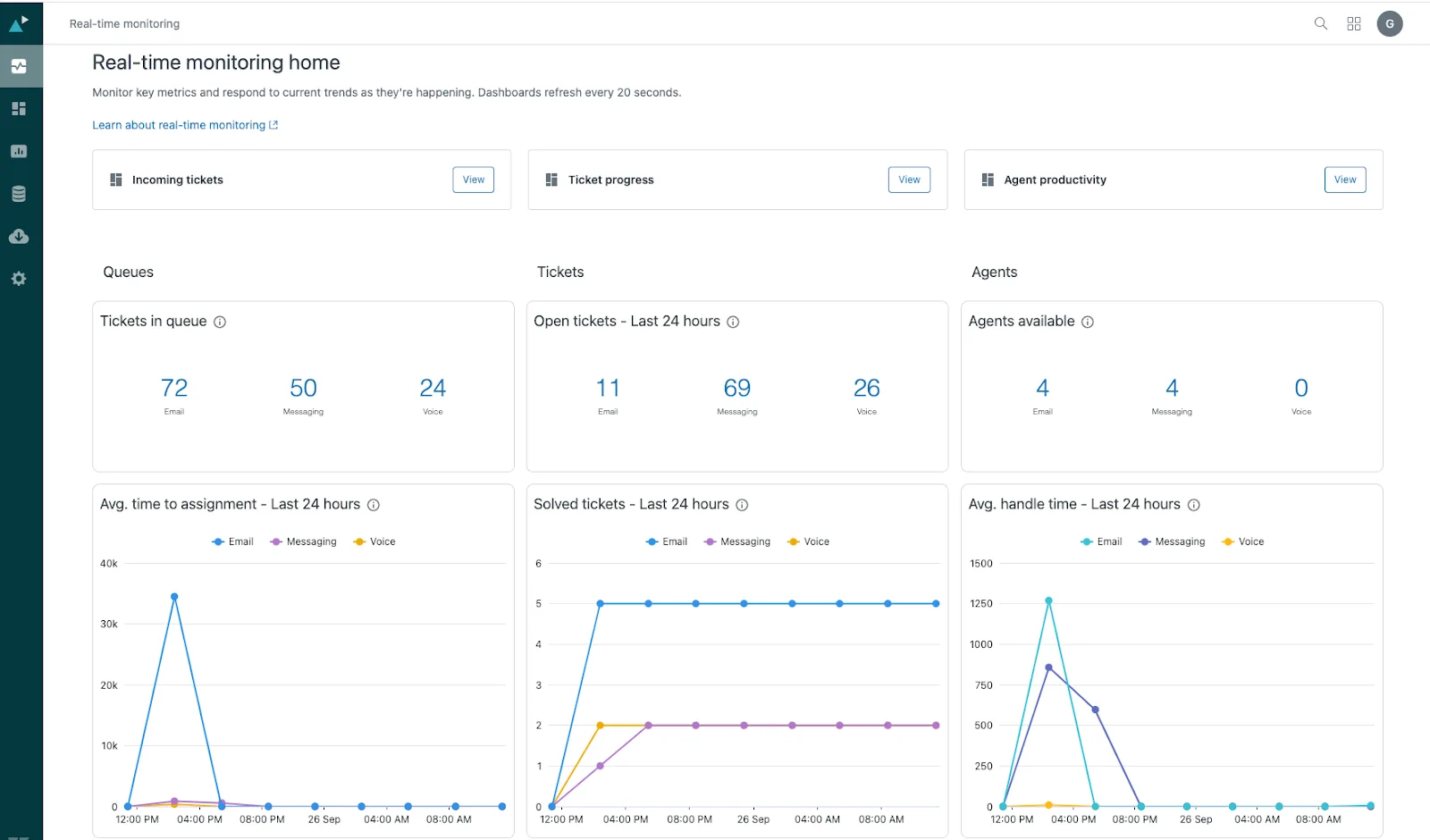
The real-time monitoring dashboard in Zendesk Analytics has been enhanced with recent-history metrics and a brand-new leaderboard. This gives supervisors an up-to-the-minute view of agent productivity and ticket progress, allowing for quick adjustments as ticket volumes spike.
Requires Add-On? No, this is part of the standard Analytics tools, though access level depends on your Suite plan.
How to Implement:
- Navigate to Zendesk Analytics (Explore).
- Click the Real-time monitoring icon (four squares icon) in the top-right product bar.
- Select Real-time monitoring home.
- Click into the Agent productivity dashboard.
- Locate the new Leaderboard visualization to see live performance rankings for your team.
6. Automate Action Flows with Custom Field Triggers
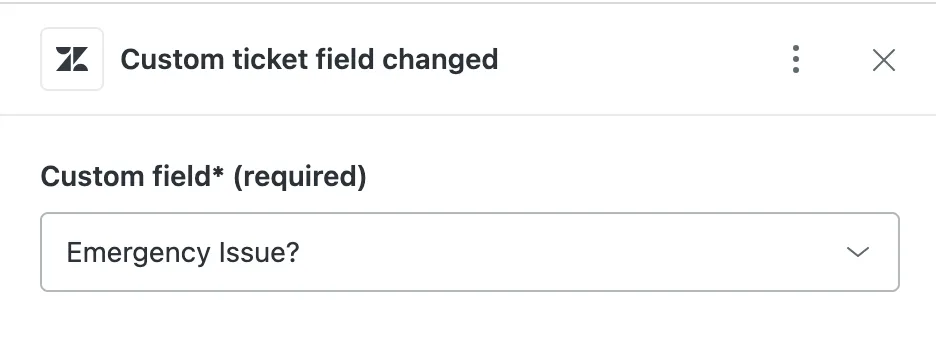
Action flows have become much more powerful for those using custom data. You can now trigger automated processes across Zendesk and external systems (like Shopify or Slack) based on updates to custom ticket fields or custom user fields. This allows for deeper automation based on specific customer data, such as a “VIP Status” field update.
Requires Add-On? No, Action flows are a standard feature in most Suite plans.
How to Implement:
- In Admin Center, navigate to Objects and rules > Action flows.
- Click Create flow.
- When defining the Trigger, select either Ticket or User as the object.
- Under the Condition menu, you will now see your custom fields listed as options.
- Select the specific field and value that should start the automation.
- Define the Action (e.g., sending data to an external HRIS or messaging tool) and click Save.
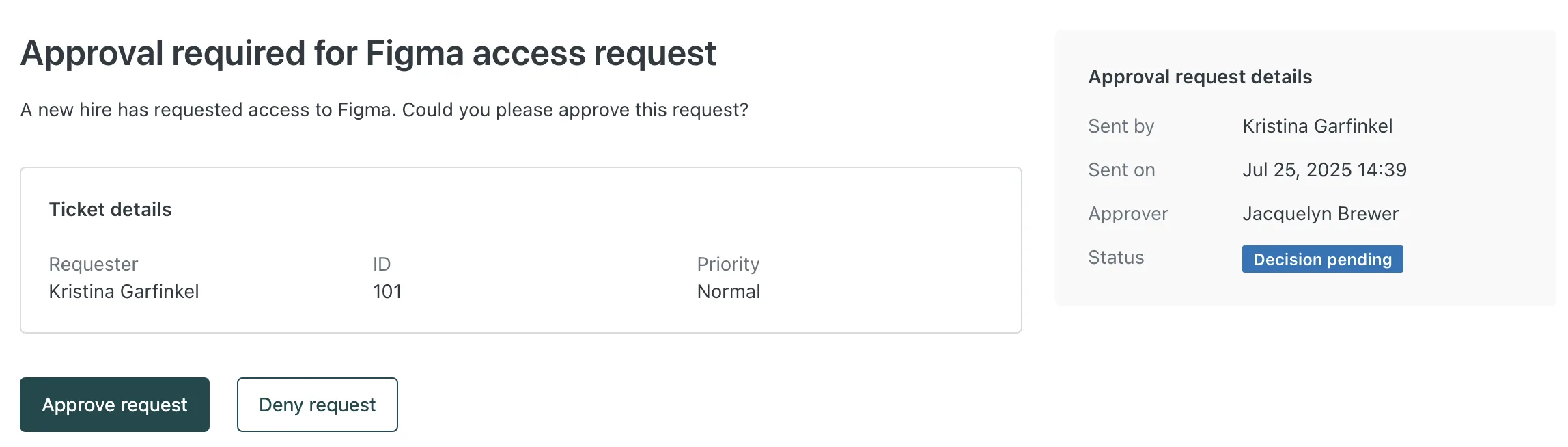
7. End-User Comments on Approval Requests
This quality-of-life update keeps all communication regarding a request in one place. End-user approvers can now add and view comments directly on the approval requests assigned to them within the Help Center. This acts as a single source of truth, preventing fragmented conversations across Slack or email.
Requires Add-On? No, but it requires the latest Copenhagen theme (v3.0+) or manual updates to your custom Help Center theme.
How to Implement:
- Ensure your Help Centre theme is using the latest version of the Copenhagen theme or update your custom theme.
- As an admin, confirm that Approvals are enabled in your settings: Workspace > Agent Tools > Approval Requests
- As an agent, create an approval request on a ticket.
- When an end-user receives the approval request they will access via a link on the email.
- End user adds a comment.
- Comments added here will be visible to both the requester and the agent in the ticket.
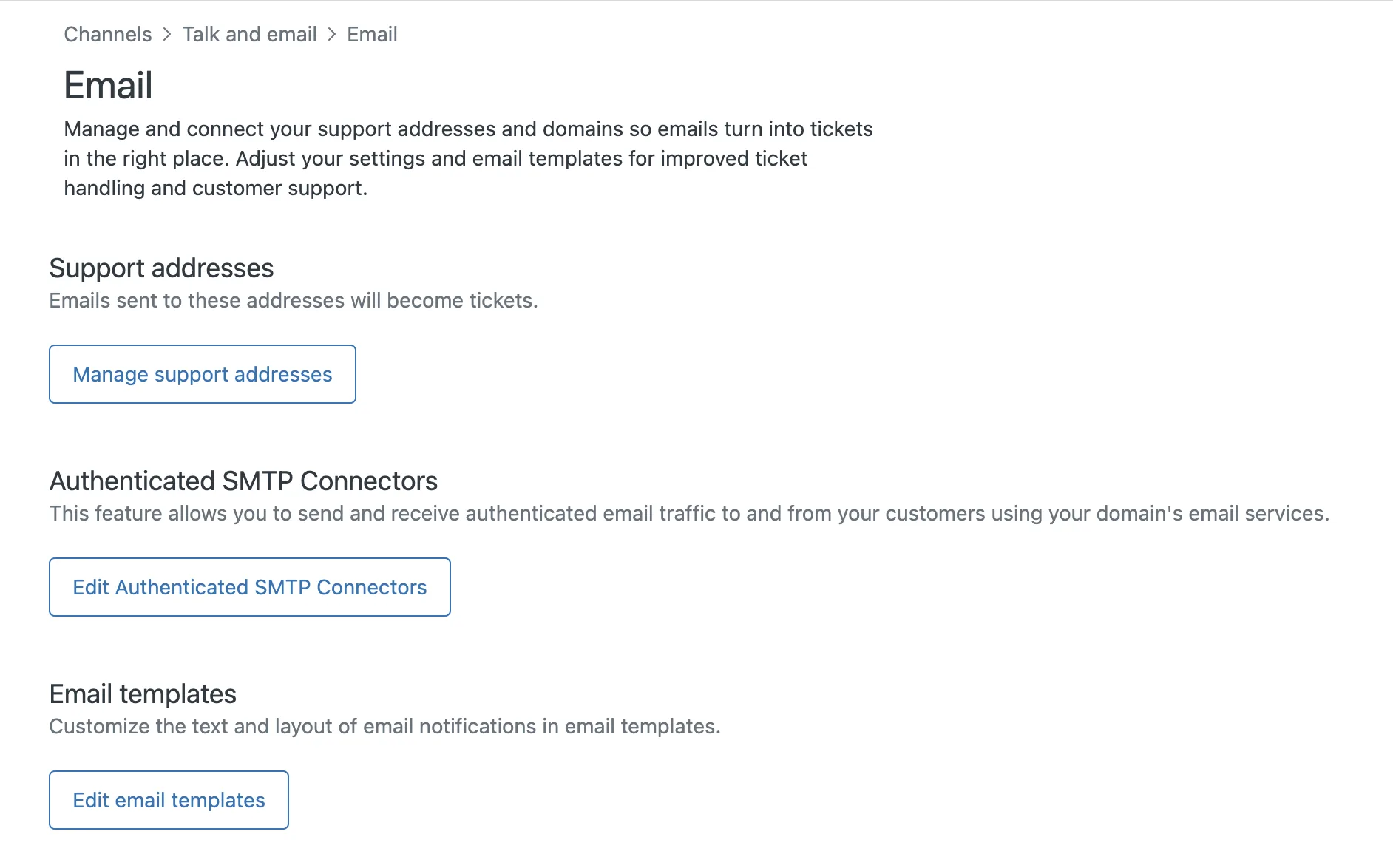
8. Modernized Email Admin Interface
The Email page in Admin Center has been redesigned to be more intuitive for admins. Related settings—such as support addresses, SMTP Connectors, and Email templates—are now grouped together. This makes it much faster to manage your global email configuration.
Requires Add-On? No, this is a standard UI update for all admins.
How to Implement:
- Go to Admin Center.
- In the sidebar, navigate to Channels.
- Select Talk and Email > Email.
- Review the new grouped layout.
That’s a wrap!
✅ That’s a wrap on the Zendesk January 2026 Release! This month focused on tightening security, simplifying admin layouts, and giving you more granular control over how AI interacts with your customers.
👉 Ready to put these features to work in your organization? Let’s chat about tailoring them to your support setup: Book a call today ↗
Follow our page on LinkedIn for regular news on features, admin tips and more.