

Every month, Zendesk ships new features and enhancements designed to simplify workflows, improve agent productivity, and deepen AI-driven customer insights. Below is a breakdown of the Zendesk December 2025 release with updates, along with practical steps to get started.
This month is particularly exciting for smaller teams, with a heavy focus on simplifying setup and using AI to build content from scratch.
Missed our previous round-ups?
- Zendesk November 2025 Release: Key Features & How to Use Them
- Zendesk October 2025 Updates – What’s important for SMBs
1. Zendesk Launchpad: The New One-Stop Setup Shop
For SMBs or teams just getting started with a specific feature set, the new Launchpad is a brilliant addition. It provides step-by-step instructions to set up your account basics and discover new features to try out.
Instead of hunting through the Admin Centre to find where to “Invite your team” or “Connect your email”, Launchpad centralises these must-have features into guided tasks (e.g., “1-min setup” or “2-min setup”). It’s essentially a fast-track implementation guide built right into the product.
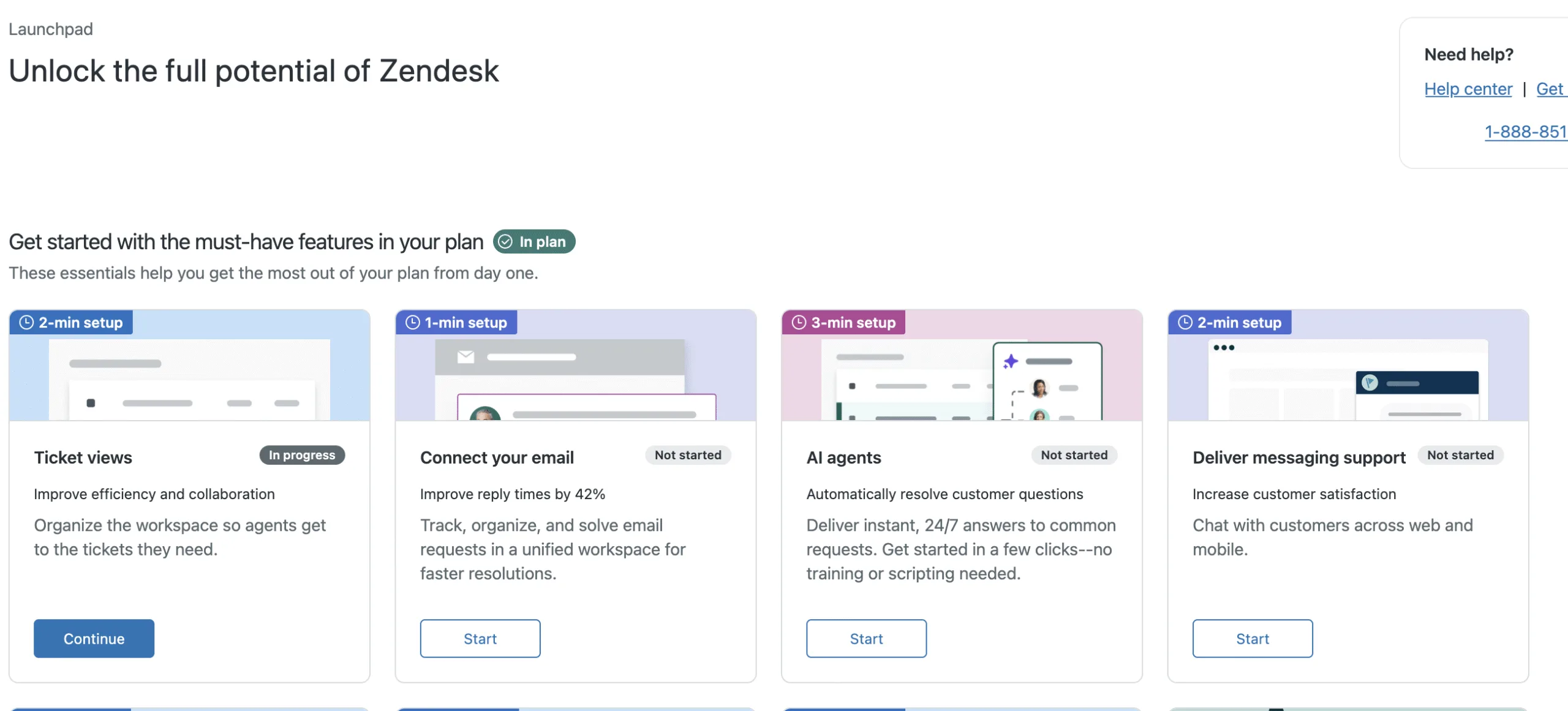
Requires Add-On? No, this is available for all plans to help you unlock the full potential of Zendesk.
How to Implement
- Log in to your Zendesk instance.
- Navigate to the new Launchpad icon or section (typically visible on the dashboard or Admin home).
- Follow the guided “cards” (e.g., “Connect your email” or “Ticket views”) to complete setup tasks in minutes.
2. Build a Help Centre Instantly with Generative AI
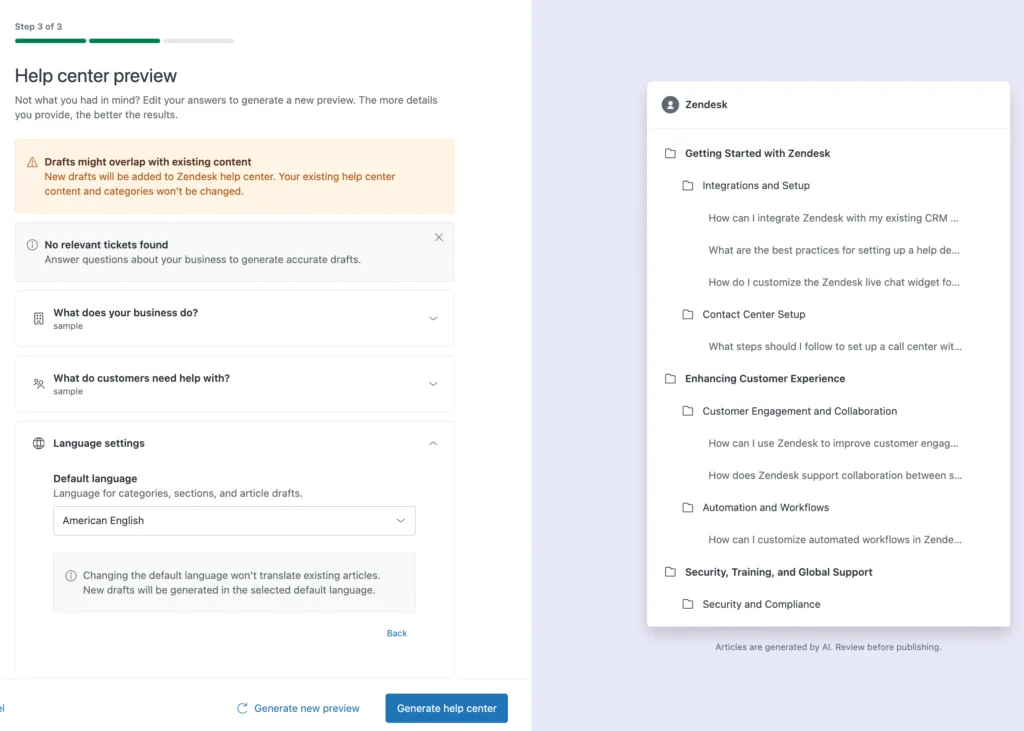
One of the biggest hurdles for smaller businesses is writing help articles from scratch. Zendesk has solved this with a new feature that uses your ticket data and generative AI to create a Help Centre.
If your Help Centre is empty or outdated, the AI analyses your ticket data from the last 30 days to identify common customer issues and automatically generates relevant article drafts. It allows you to launch a self-service portal populated with accurate content in a fraction of the time.
Requires Add-On? Yes, this typically utilises the Advanced AI / Copilot features.
How to Implement
- In Guide, navigate to the setup page.
- Look for the option to “Generate help center” in the banner.
- The system will generate a preview based on your last 30 days of tickets. Review the drafts and publish them.
3. Modernised Views Admin Page
Managing ticket views has long been a pain point for admins dealing with long lists and pagination. The Views admin page has been completely modernised.
The new interface offers unified filters, drag-and-drop reordering, and a higher column limit. Crucially, you can now order your list of views on a single page, eliminating the need to click through multiple pages to find the view you want to edit. This is a massive quality-of-life update for efficient administration.
Requires Add-On? No, this is a standard platform update.
How to Implement
- Navigate to Admin Center > Workspaces > Views.
- You will automatically see the new modernised interface.
- Try the new drag-and-drop feature to reorder how views appear for your agents.
4. Simple Setup Wizard for Views
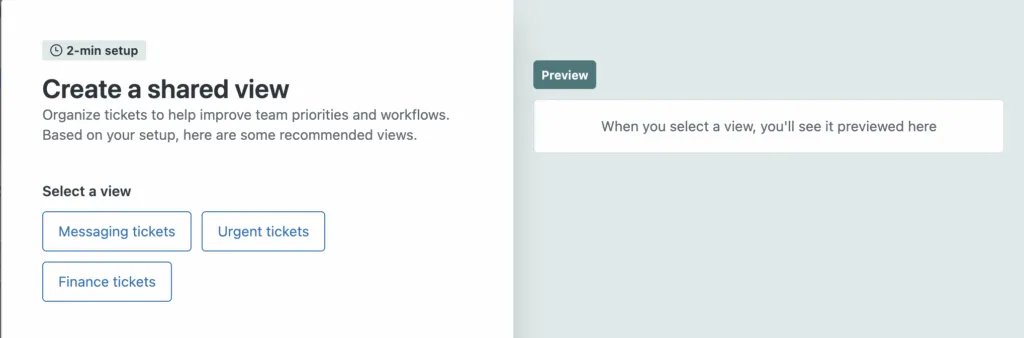
Sticking with Views, Zendesk has introduced a simple setup wizard designed specifically to help customers learn how to create custom views.
If you aren’t comfortable with complex conditions and logic, this wizard walks you through creating three simple, essential views to get you started. It creates a solid foundation for your team’s workflow without the guesswork.
Requires Add-On? No, standard feature.
How to Implement
- Go to the Launchpad page in Admin Center.
- Look for the setup wizard option for new views.
- Follow the on-screen steps to generate your initial ticket lists.
5. Add Comments to Approval Requests
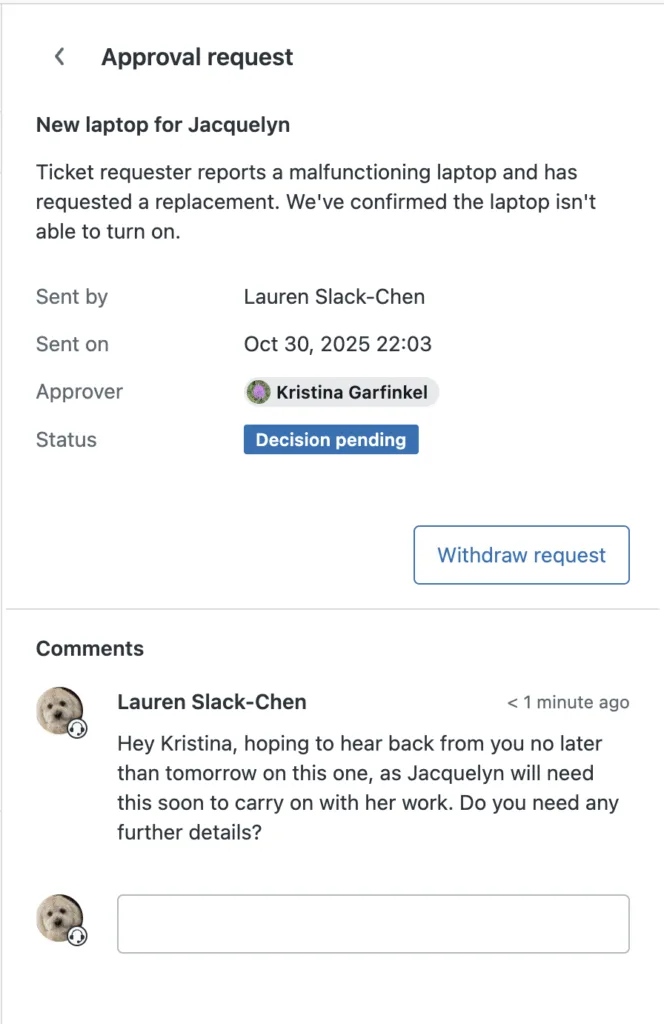
Previously, approving a request was often a binary “Yes/No” action. Now, agents can respond to approval requests with comments prior to approving or denying the request.
This ensures that all context necessary to reach a decision is kept together within the ticket workflow 💬. It makes the process far more transparent and efficient, preventing the need to switch to Slack or email to ask “Why do we need this laptop?” before clicking approve.
Requires Add-On? No, standard functionality for accounts using Approvals.
How to Implement
- Open a ticket with an active Approval Request.
- In the approval side pane or app, you will now see a comment field.
- Type your question or context (e.g., “Do you need further details?”) and send it before changing the status.
6. AI-Powered Recommendations Page
Not sure what to automate next? Zendesk has launched a dedicated Recommendations page in the Admin Center.
This page uses AI to analyse your specific account usage and suggests automations or improvements tailored to your business. You can filter recommendations by type to find quick wins that will save your agents time. It’s like having a consultant built into the dashboard.
Requires Add-On? Yes, requires Zendesk Copilot.
How to Implement
- Navigate to Admin Center Home.
- Click on the new Recommendations section.
- Review the suggested automations and click to implement them directly.
7. Tagging for Messaging Reminders
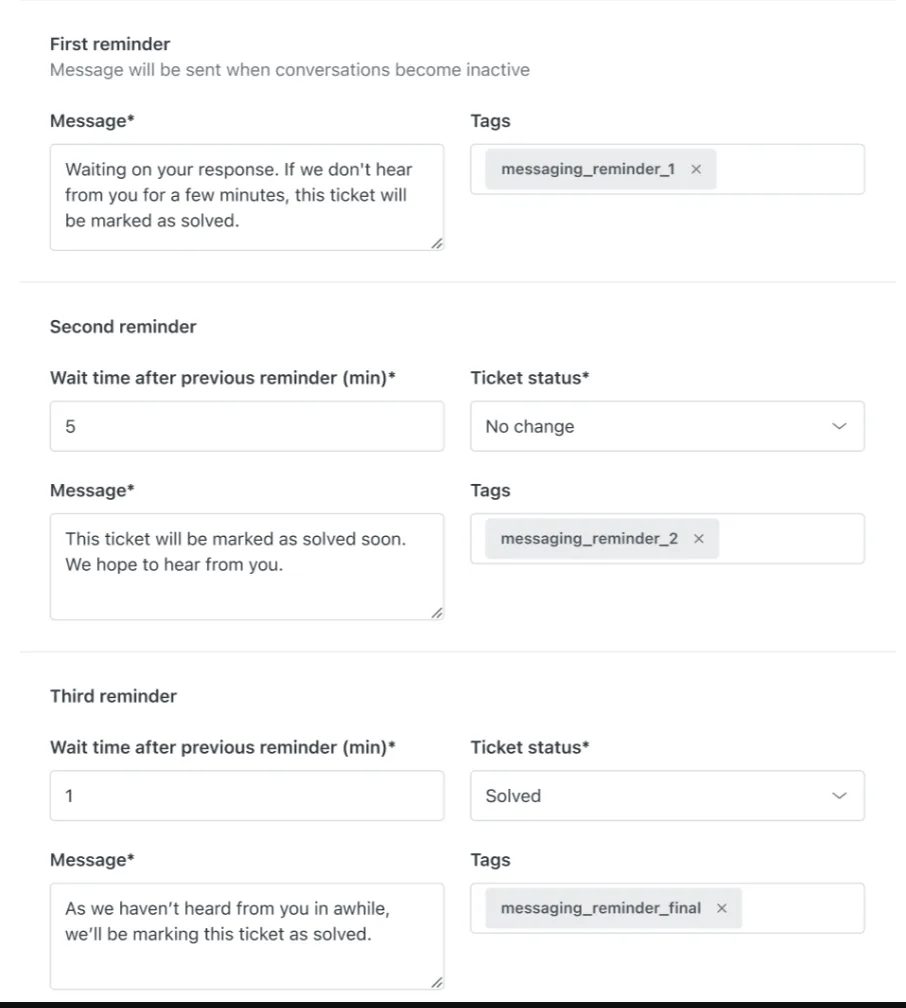
For teams using Messaging, handling inactive conversations is critical. You can now add tags to messaging reminders.
This allows you to build downstream workflows. For example, if a “Second Reminder” is sent, you can tag the ticket messaging_reminder_2. You can then create triggers that look for this tag to escalate the ticket, change the priority, or report on how often customers ghost conversations 👻.
Requires Add-On? No, standard for Messaging.
How to Implement
- Go to your Messaging settings in Admin Center.
- Find the Inactivity Reminders configuration.
- In the fields for First, Second, or Third reminders, add your specific tags (e.g.,
messaging_reminder_final).
8. AI Agents Essentials Now Use External Content Sources
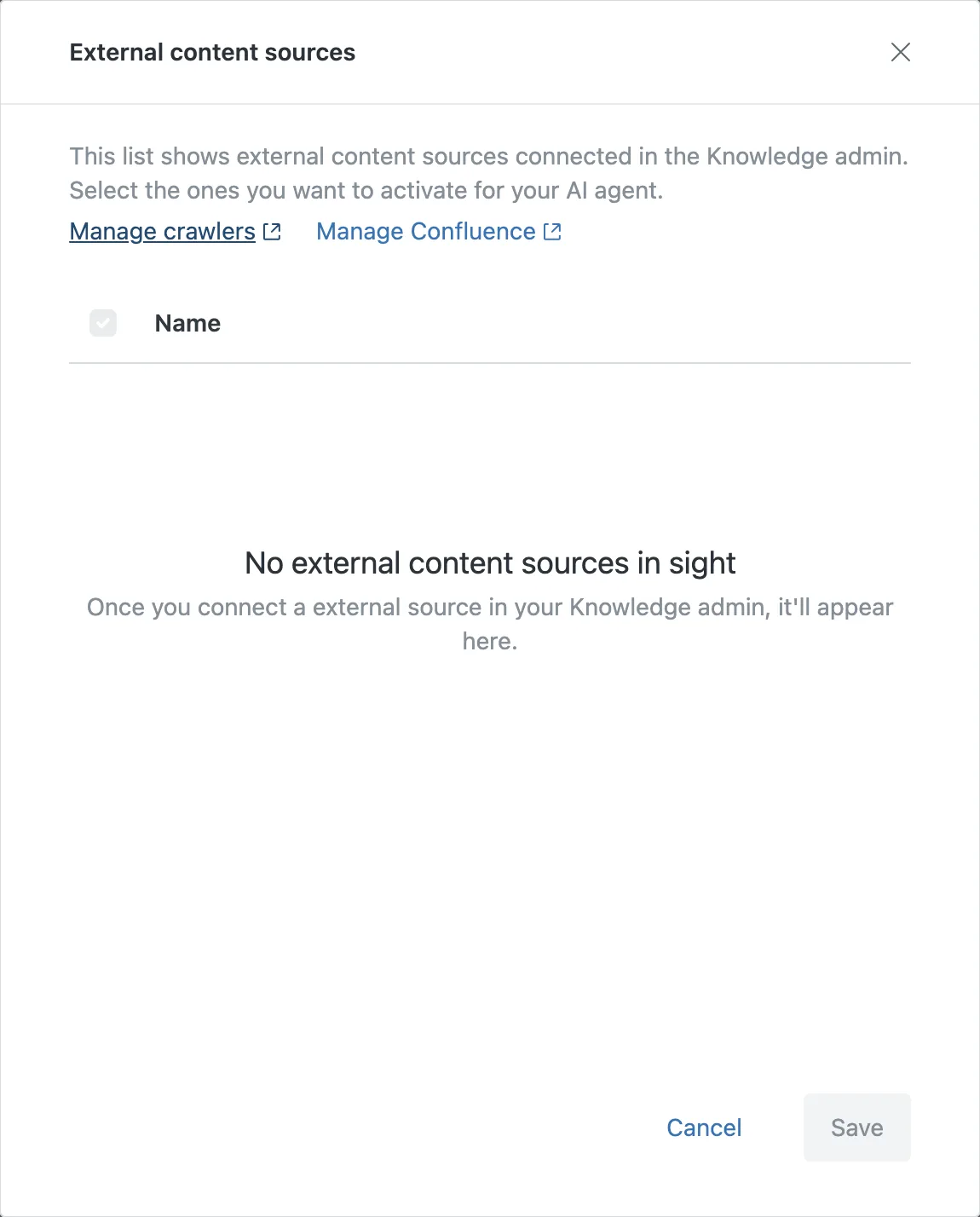
Finally, a powerful update for AI Agents Essentials users. AI agents can now generate answers based on external content sources.
This means you don’t have to migrate everything into Zendesk Guide immediately. You can connect Confluence spaces, web-crawled content from your public website, or other external records. The AI will read this external data to deliver consistent, high-quality answers to your customers.
Requires Add-On? No, included in all Suite plans.
How to Implement
- In Admin Center, go to AI Agents setup.
- Edit the Essential agent
- Navigate to Brands > Knowledge > Edit Sources
- Add a new connection source (e.g., Confluence or a Website Crawler) to power your answers.
That’s a wrap!
That’s a wrap on the December 2025 Zendesk Release! From instant Help Centres to smarter admin views, there is plenty here to help SMBs punch above their weight.
Ready to put these features to work in your organisation? Let’s chat about tailoring them to your support setup: Book a call today 📅