
Every month, Zendesk ships a host of new features and enhancements designed to streamline agent workflows, boost team productivity, and deliver smarter, AI-powered customer experiences. Here is a breakdown of the Zendesk August 2026 release, complete with practical steps to get you started.
Automatic-refresh for views
Keep your ticket views consistently up-to-date with automatic refreshing. This feature updates your views every minute, ensuring that sidebar counts and ticket tables reflect the latest information without any manual intervention. To prevent disruption, the auto-refresh functionality is automatically paused when you are performing bulk ticket actions. The primary benefits include improved agent efficiency and greater data accuracy, as agents can always trust they are working with the most current information.
- Navigate to your ticket views by clicking the Views icon in the sidebar.
- Select any view to open it in the main window.
- Observe the ticket list and sidebar counts updating automatically every minute.
- Select multiple tickets to perform a bulk action and notice that the automatic refresh pauses.
- Complete the bulk action to see the automatic refresh resume.
IT asset panel user selection
Agents can now select and manage assets for any user associated with an account directly from the IT asset panel in the Agent Workspace, without needing to change the ticket’s official requester. This enhancement streamlines workflows for IT teams dealing with scenarios involving multiple users or shared assets, improving efficiency by reducing the number of steps required to manage assets during a support interaction.

- Open a ticket in the Agent Workspace.
- Locate the Asset Management panel in the ticket sidebar.
- Click on the user selection dropdown within the panel.
- Choose the relevant user from the list of all users linked to the account.
- Proceed to view, assign, or unassign assets for the selected user.
Copilot intelligent triage in Suite and Support Professional
Intelligent triage, powered by Copilot AI, is now included in all Zendesk Suite and Support plans from Professional and above. This feature automatically analyses and classifies incoming tickets by identifying their topic, sentiment, and language, at no additional cost. By providing this data upfront, it helps teams identify trends in ticket volume and offers AI-powered recommendations to build more effective workflows and routing rules.
- Navigate to Admin Centre and find the Copilot settings.
- Ensure that intelligent triage is enabled for your account.
- Open any new ticket to view the AI-detected intent, language, and sentiment in the context panel.
- Go to Triggers or Automations in Admin Centre.
- Create a new business rule using conditions based on the AI-detected intent or sentiment.
- Use this data to route tickets to the appropriate group or set a specific priority.
Auto assist with similar solved tickets
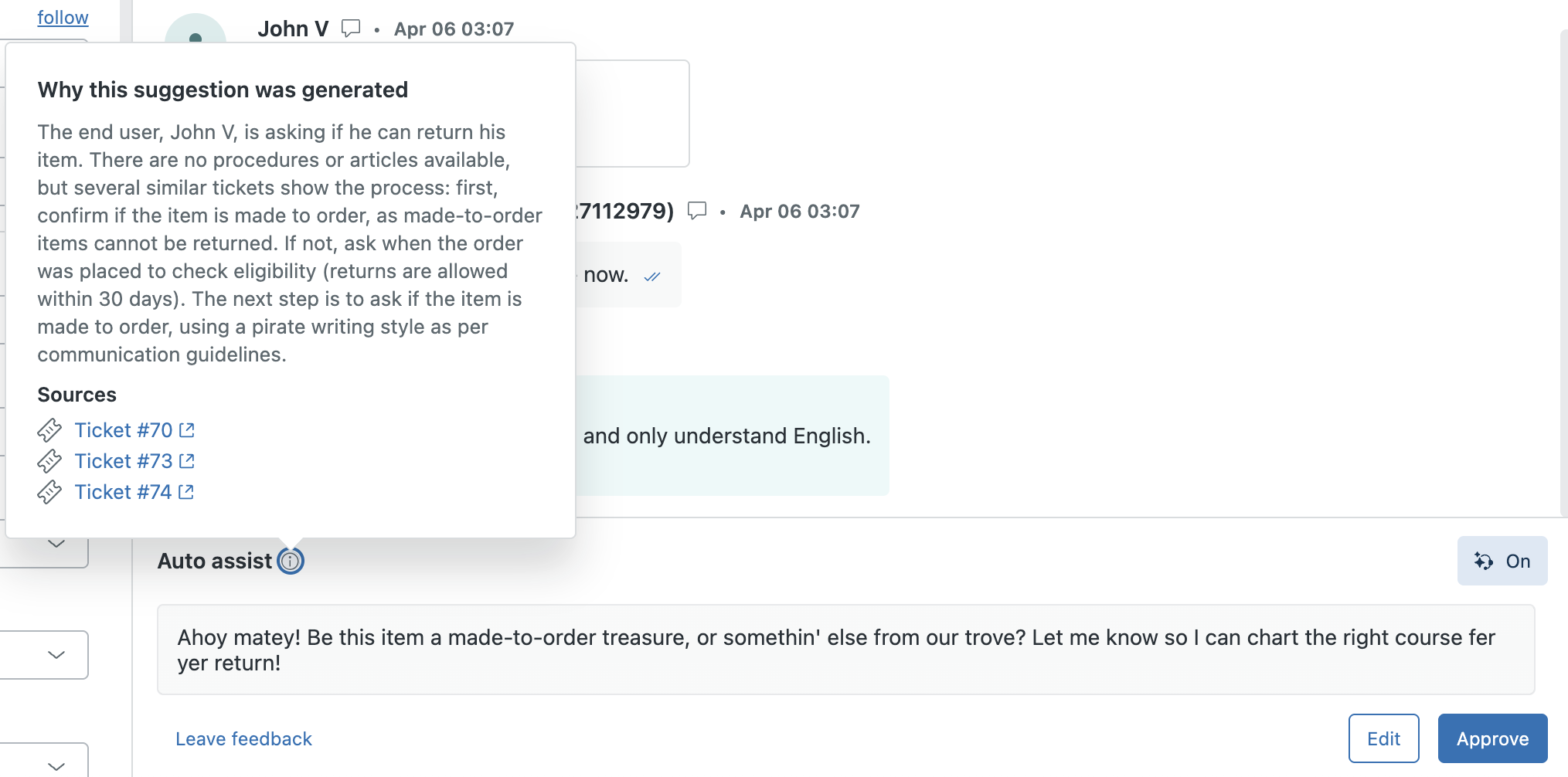
Auto assist can now generate reply suggestions for agents by using knowledge from similar, previously solved tickets. This capability is activated when no relevant knowledge base articles or pre-defined procedures are found, providing agents with relevant, context-aware suggestions based on real-world resolutions. Agents can also view the rationale behind each suggestion and the source tickets used, leading to faster, more consistent support across all channels.
- Open a ticket that requires a response.
- Locate the auto assist panel within the Agent Workspace.
- Review the AI-generated suggestions that appear.
- If a suggestion is based on a solved ticket, click to view the rationale and source ticket.
- Select the most appropriate suggestion to insert it into your reply.
- Customise the text as needed before sending the response to the customer.
Manage Zendesk Support apps permission
A new custom role permission, “Manage Zendesk Support apps,” is now available for accounts on an Enterprise plan. This allows administrators to delegate the management of Support apps—including installation, configuration, and removal—to specific team members without granting them full administrative privileges. This granular control enhances security by adhering to the principle of least privilege and improves operational efficiency by distributing app management tasks.
- Navigate to Admin Centre, then select Roles under the People settings.
- Either create a new custom role or edit an existing one.
- Scroll to the Zendesk Support permissions section.
- Locate the “Manage Zendesk Support apps” permission and select the checkbox to enable it.
- Save the changes to the custom role.
- Assign this role to the agents or team members who require app management access.
New help centre article editor components
Enhance the structure and readability of your knowledge base articles with new built-in components in the help centre editor. You can now add accordions for expandable sections, callouts to highlight important information, and tabs to group related content. These tools are available directly from the article toolbar, allowing content creators to build more engaging and organised articles without needing to write any custom code.
- Open an existing article or create a new one in your help centre’s knowledge base.
- In the article editor toolbar, locate the “Insert component” menu.
- Select either “Accordion,” “Callout,” or “Tabs” from the dropdown list.
- Add your content into the placeholders provided by the new component.
- Customise the component’s titles and content as needed.
- Save or publish the article to see the new formatting live in your help centre.
Live call transcription for Contact Centre
Agents using Zendesk Contact Centre can now view real-time, live transcripts during active voice calls. This feature improves agent productivity and the accuracy of information capture, while also enhancing accessibility. The live transcript supports speaker labels, searchable text, and timestamps, giving agents a powerful tool to follow conversations and confirm details without asking for repetition. This feature is available for customers using Zendesk Contact Centre with the Amazon Contact Lens integration.
- Ensure you have Zendesk Contact Centre with Amazon Contact Lens enabled.
- Answer an incoming call in the Agent Workspace.
- Once the call is connected, locate the live transcript panel within the call control interface.
- Follow the conversation in real-time as the text appears on the screen.
- Use the search function within the transcript to find specific keywords or phrases mentioned during the call.
Voice ringtones
Agents using Zendesk Voice can now personalise their call experience by choosing from a selection of 20 different ringtones. In addition to selecting a ringtone, agents can also adjust the ringtone volume directly within the call console. This allows for greater customisation and helps agents distinguish call alerts in a busy environment. To access these settings, agents must have their status set to Away or Offline.
- Set your agent status to “Away” or “Offline” in the call console.
- Click on the settings icon within the voice console.
- Navigate to the audio settings or ringtone selection menu.
- Listen to and select one of the 20 available ringtones.
- Use the volume slider to adjust the ringtone to your desired level.
- Save your settings before changing your status back to “Online”.
New permissions structure for Workforce Management
Zendesk Workforce Management (WFM) has introduced a more granular permissions structure, giving administrators finer control over user access. Permissions are now organised into distinct sections, allowing for custom configurations for each feature. A significant enhancement is the ability to grant read-only access to specific teams, enabling team leaders and other stakeholders to view schedules and forecasts without the ability to make changes. This is available for customers with the Workforce Management add-on.
- Navigate to the Workforce Management admin settings.
- Select the Roles and Permissions section.
- Choose an existing role to edit or create a new one.
- Review the new permission sections, such as Scheduling, Forecasting, and Reporting.
- For each section, select either “Full access,” “Read-only,” or “No access.”
- For more granular control, expand a section to set custom permissions for individual features within it.
- Save the role and assign it to the appropriate users or teams.
Multi-tiered root causes for Quality Assurance
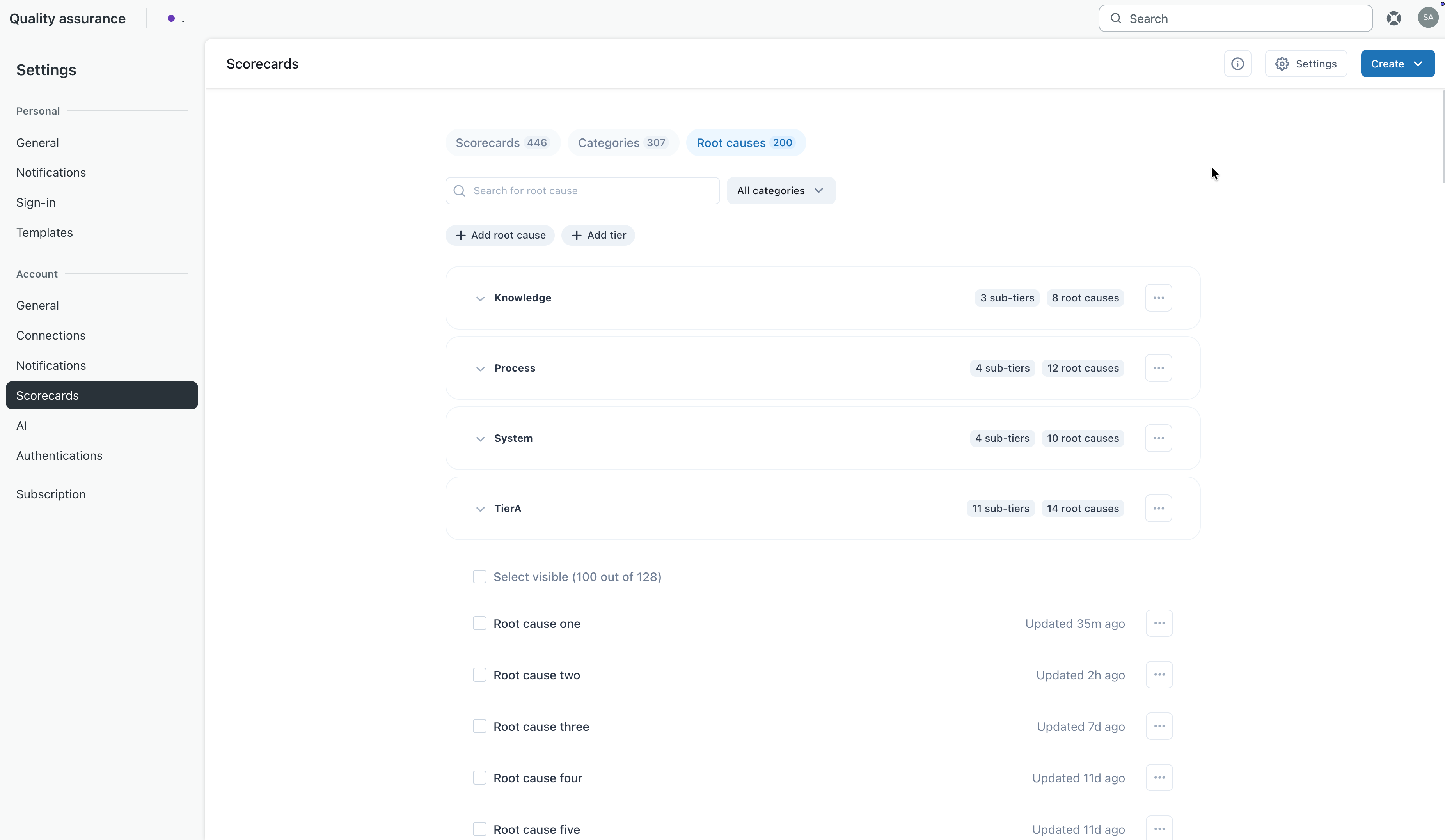
Zendesk Quality Assurance (QA) now supports multi-tiered root causes, allowing review scores to be categorised with greater precision. Admins can configure a cascading dropdown system with up to three tiers, guiding reviewers to the most accurate root cause for a graded interaction. This structured approach saves reviewers time, reduces ambiguity, and produces more granular data for actionable insights into team performance and training needs. This feature is available to customers with the Quality Assurance add-on.
- Navigate to the Quality Assurance admin settings.
- Go to the Root Causes management page.
- Create a top-level root cause category (Tier 1).
- Click to add a sub-category to the Tier 1 item, creating a Tier 2 root cause.
- Repeat the process to add a Tier 3 root cause if needed.
- When performing a quality review, click the root cause dropdown in the scorecard.
- Select the appropriate cause from the new multi-tiered cascading menu.
That’s a wrap!
✅ That’s a wrap on the Zendesk August 2026 Release! This month’s updates focus heavily on agent efficiency and empowerment, with features like automatic view refreshing, live call transcription, and smarter AI suggestions designed to save time and improve focus. At the same time, new granular permissions for apps and workforce management give administrators greater control and security over their operations.