Zendesk is constantly evolving, rolling out updates and new features that can significantly impact your support operations. We’re here to cut through the noise and give you our expert take on the changes that matter.
Finally! Zendesk Tightens Attachment Security with One-Time Passcodes
What We Think:
Zendesk is introducing one-time passcode (OTP) verification for recipients to access Zendesk-hosted email attachments. In short, instead of a public link, recipients must verify their email address with a temporary code to download a file. Our verdict: This is a fantastic, long-overdue feature that strikes an excellent balance between security and user experience. For any business sharing even remotely sensitive information via email tickets, this is a non-negotiable security upgrade. It plugs a significant gap in Zendesk attachment security without forcing your customers to create a Help Centre account just to view a file, which has always been a point of friction. We highly recommend enabling this.
The Reality Check: Deciphering the OTP Rollout
Let’s break down what’s actually happening, minus the corporate-speak. Previously, when you sent an attachment via a Zendesk ticket email, the link to that attachment was essentially public. Anyone with the link could access the file. While convenient, this posed a security risk if an email was forwarded or intercepted.
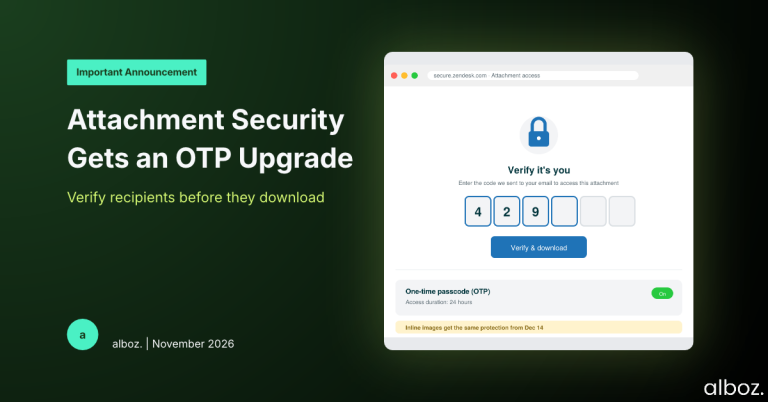
This new feature changes that. When an end-user clicks a link for a Zendesk-hosted attachment, they won’t get the file immediately. Instead, they’ll be prompted to enter their email address. If that address is associated with the ticket (as a requester, CC, etc.), Zendesk will send a six-digit passcode to them. They enter the code, and voilà, they can access the file. This simple step ensures that only authorised parties on the ticket can view attachments.
Here are the key things to know:
- It’s opt-in for existing accounts. If you’re a long-time Zendesk customer, this feature will not be active until you manually enable it. New Zendesk accounts will have it enabled by default.
- Signed-in users are unaffected. If your agents or customers are already logged into your Help Centre, they will bypass the OTP check completely. It’s for “anonymous” recipients who interact purely over email.
- It doesn’t apply to everything. This change does not affect attachments in Messaging channels or files delivered as true email attachments (as opposed to links). It only applies to the links to files hosted on Zendesk’s servers.
- Inline images are next. While standard file attachments are protected now, Zendesk has noted that this same protection will extend to inline images starting December 14th. This is a crucial detail to be aware of.
This is a major step forward for improving overall Zendesk attachment security, making it far safer to conduct business that involves sharing documents via email.
Our Expert Opinion: The End of “Security vs. CX” Trade-Off
For years, we’ve had conversations with clients who were stuck between two bad options: either force every customer to create and manage a Help Centre account to access files securely, or accept the risk of using public attachment links. The first option creates significant customer friction, while the second is a data governance nightmare waiting to happen, especially for industries like finance, legal, or healthcare.
The OTP feature is the elegant middle-ground solution we’ve been waiting for. It validates the recipient’s identity in a way that is both secure and low-effort. The real genius, in our opinion, is the configurable access duration. Admins can set a time period (e.g., 8 hours, 24 hours) during which a verified user can continue to access attachments on that account without needing a new passcode. This prevents the user from being annoyed by constant verification requests while still ensuring the session eventually expires.
This feature demonstrates a mature understanding of real-world support workflows. Many critical conversations happen entirely over email. This update allows those workflows to continue, but with a desperately needed layer of verification. It moves Zendesk from a system where attachment security was a binary choice to one that offers a more nuanced, risk-appropriate control.
How We’d Handle the Rollout: An Action Plan
Activating this feature is simple, but we advise a thoughtful approach. Abruptly adding a new step for customers can cause confusion if not managed correctly. Here is the exact process we’re advising our clients to follow.
If you need help customising your Zendesk instance or rolling out changes like this, our Zendesk support services team can provide expert guidance.
| Step | Action | Our Recommendation |
|---|---|---|
| 1. Assess Your Use Case | Determine if your teams send sensitive information via email attachments (e.g., invoices, contracts, personal data, reports). | If you send anything you wouldn’t want publicly accessible, you should enable this feature. If your attachments are purely non-sensitive (e.g., general marketing PDFs), you might choose to leave it off to avoid the extra step for users. For most, the security benefit outweighs the minor friction. |
| 2. Navigate to Settings | Go to Admin Center > Objects and rules > Tickets > Settings > Downloads and attachments. | Bookmark this page. It’s the central hub for all things related to Zendesk attachment security, including this new OTP setting. |
| 3. Enable & Configure | Turn on the “One-time passcode (OTP)” setting. Then, choose an appropriate “Access duration.” | We suggest starting with an access duration of 8 to 24 hours. This covers a standard business day and prevents users from needing to re-authenticate constantly if they are referencing multiple documents throughout their day. |
| 4. Inform Your Team | Prepare your agents for this change. Let them know what customers will experience and how to answer questions about the new verification step. | Create a simple internal FAQ or a short paragraph agents can use to explain the change. Example: “For your security, we now require a quick email verification to access attachments. You’ll receive a one-time code to your email to confirm it’s you.” |
| 5. Monitor Feedback | After rolling out the change, listen for any feedback from customers or agents. | If customers are finding the process confusing, you may need to add a line to your email footers explaining the new secure process. If the access duration feels too short, you can easily adjust it. |
In conclusion, the introduction of OTP for email attachments is a significant and welcome enhancement. It addresses a long-standing security concern with an elegant, user-friendly solution. By following a measured rollout plan, you can bolster your security posture without disrupting your customer experience.