
This method can be used to import Zendesk Knowledge articles – fresh or migrated content – into Zendesk Knowledge (Guide / Help Centre). The method uses python. Don’t let that scare you. You will only need to execute the script from the command line. The most important thing is to get your files prepared properly. There are templates to help.
Three steps to importing content into Zendesk Knowledge:
☑ Prepare Zendesk Knowledge structure – sections, categories, authors, etc. need to be prepared before importing. Although you can do this by API also, it’s not in scope of this guide and so should be done manually.
☑ Prepare the import file (CSV) – the script is written to import from a CSV file. Each column is described below. I recommend creating a file witha. small number of articles and testing it thoroughly before importing large numbers.
☑ Importing the data – this requires running a command from the terminal/command line. This was created and executed on MacOS. Although it should work on other OS’s such as Linux or Windows, I have not tested it.
Step 1 – Prepare Zendesk Knowledge Structure
Training you how to create categories, sections and so forth is out of scope of this post. There is a comprehensive guide right here on Zendesk’s support site.
What I will say is that the import script requires a Section ID for each article. Therefore, you will need to create the complete structure of your help centre before moving on. Ensure you create and make note of the following:
- Category(ies) – this is the top level in the KB. You need at least one even if that’s the default ‘General’ category.
- Section(s) – Within your category(ies) you will create sections. When you create a section, make note of it’s ID. You will need it for the CSV file.
- Authors – by default, the author is the one importing the articles. This script does not support changing the author but it wouldn’t be terribly difficult to adapt it.
Note: If you plan to use your Help Centre with Zendesk’s Agentic AI offering (and I highly recommend you do!) then read my recent article about building an AI-ready help centre.
Step 2 – Prepare the Import File (CSV)
The script reads a CSV file to import the articles. You can download a template with a few samples rows as shown below:
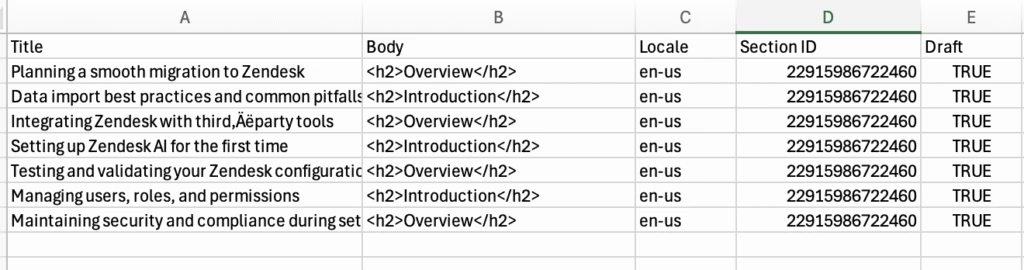
Download: alboz_zendesk_kb_import.csv
Column Mapping
The columns are fairly self-explanatory but for completeness….
- Title – the ‘Title’ field as shown in the article editor.
- Body – the main editing area where the article is created. You can put plain text or HTML in this. As shown int he example, I have HTML. Ensure it’s validated before importing or it could all go badly wrong.
- Locale – The locale that the article is being displayed in.
- Section ID – as mentioned above, this is where the article will be placed. You can find this in the Knowledge Admin by:
- Browsing to Knowledge Admin > Arrange Articles
- Clicking into the Category > Section
- Examine the URL – you should see something like https://pdi-alboz.zendesk.com/knowledge/arrange/sections/22915944776604?brand_id=15357121160092. The section ID in this example is in bold red.
- Draft – the published status of the article. I recommend setting this to TRUE so you can verify if the articles were created correctly.
Step 3 – Importing the Zendesk Knowledge Articles
OK – by now you should have prepared your Zendesk Help Centre categories and sections created. You should also have at least a test CSV file as per the template. Let’s perform the import.
- Enable API Token Access
- Log into Zendesk as an administrator.
- Go to Admin Center > Apps and integrations > API configuration.
- Check Allow API token access
- Save your settings.
- Generate the API Token
- Click API tokens > Add API token
- Enter a descriptive name for this token.
- Click Save.
- Copy the newly generated token immediately and store it securely — you won’t be able to view it again later.
- Download the script from here: import_zd_articles.py
- Place your prepared CSV file in the same directory as your script.
- Install Script Requirements
- Ensure you have Python 3 installed on your machine.
- Use pip to install required packages. From a command line, run pip install requests python-dateutil pandas

- Perform a dry run by executing the following command. This will not import anything. It will just verify the connection, data format, etc.
python import_zd_articles.py \

--subdomain YOUR_ZENDESK_SUBDOMAIN \

--email "YOUR_ADMIN_EMAIL" \

--api-token "YOUR_API_TOKEN" \

--csv "alboz_zendesk_kb_import.csv" \

--auto-permission-group \

--notify-subscribers false --dry-run - If all is well, run the same command without –dry-run.
- Enable API Token Access

If all went well you should see your articles imported into your Knowledge Admin. If not, you will see hopefully fairly helpful errors to help troubleshoot. Please feel free to comment if you need help or reach out to me at ross.whitney@alboz.eu