
Bump, solve & close refers to specific actions taken within a ticketing platform such as Zendesk to manage and resolve customer issues more efficiently. In this post, we’ll address the bump stage.
Previously I described the bump stage of the bump, solve and close process. I gave examples of how to semi-automate and fully automate bumping your tickets to ensure they don’t go stale or get forgotten. You can find that post here. This post looks more closely at the solve stage of the ticket lifecycle and how you can auto-solve pending tickets using two automations.
Auto-solving Pending Tickets
This is the most basic workflow every Zendesk implementation should have.
🎯 Goal
Ensure tickets in Pending status (waiting for the Requester to respond) are addressed automatically so agents don’t need to follow up manually.
In this scenario, we’ll use two automations:
- Automation #1: Customer Follow Up – Pending notification after 48 hours
- Automation #2: Customer Follow Up – Pending notification after 7 days, auto-solve
Some might argue the first one belongs in the “bump” stage, but for clarity both are covered here.
Automation #1: Pending notification after 48 hours
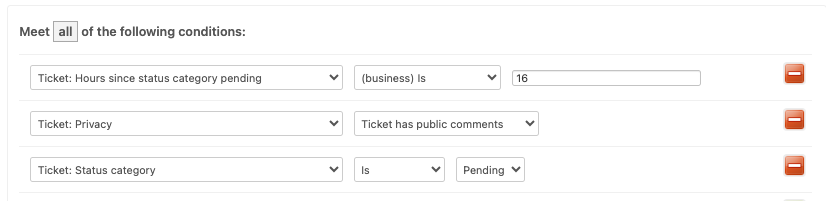
Create a new automation
- Add All conditions as shown:
- Ticket: Hours since status category pending > 16 business hours (≈48 hours)
- Ticket: Privacy > Ticket has public comments (ensures it’s an external user)
- Ticket: Status category > Is > Pending
- Optionally, add Any conditions to restrict scope (e.g., certain ticket forms).
💡 Important Note
This step leverages a webhook to update the ticket via the Zendesk API. Learn how to create this webhook here.
Perform these actions
- Notify user by email → Requester + CCs (supports Dynamic Content for multiple languages).
- Notify active webhook → Update ticket with JSON (adds internal note for agents, avoids duplicate follow-ups).
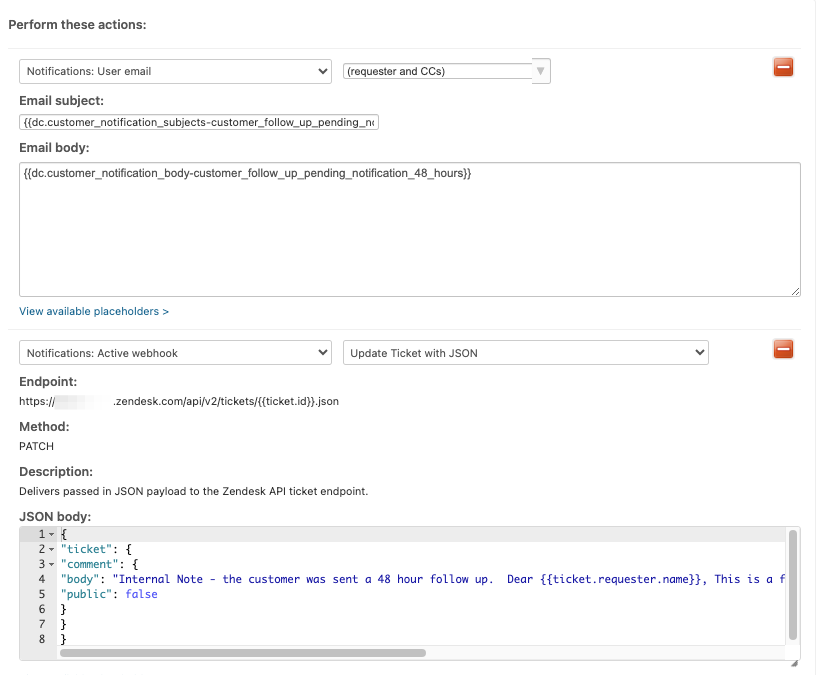
Summary: This automation acts 48 hours after Pending status, emails the Requester and CCs, and adds an internal note for agents.
Next: Auto-solve if the Requester takes no action.
Automation #2: Pending notification after 7 days – auto solve
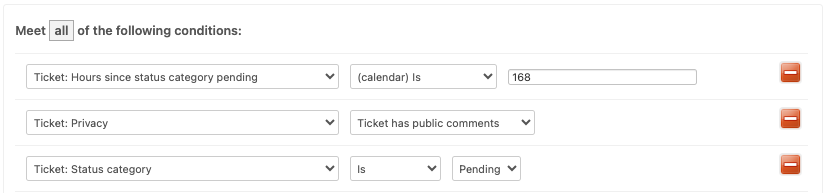
Create a new automation
- Add All conditions:
- Ticket: Hours since status category pending > 168 calendar hours (7 days)
- Ticket: Privacy > Ticket has public comments
- Ticket: Status category > Is > Pending
- Optionally restrict by ticket form, as in Automation #1.
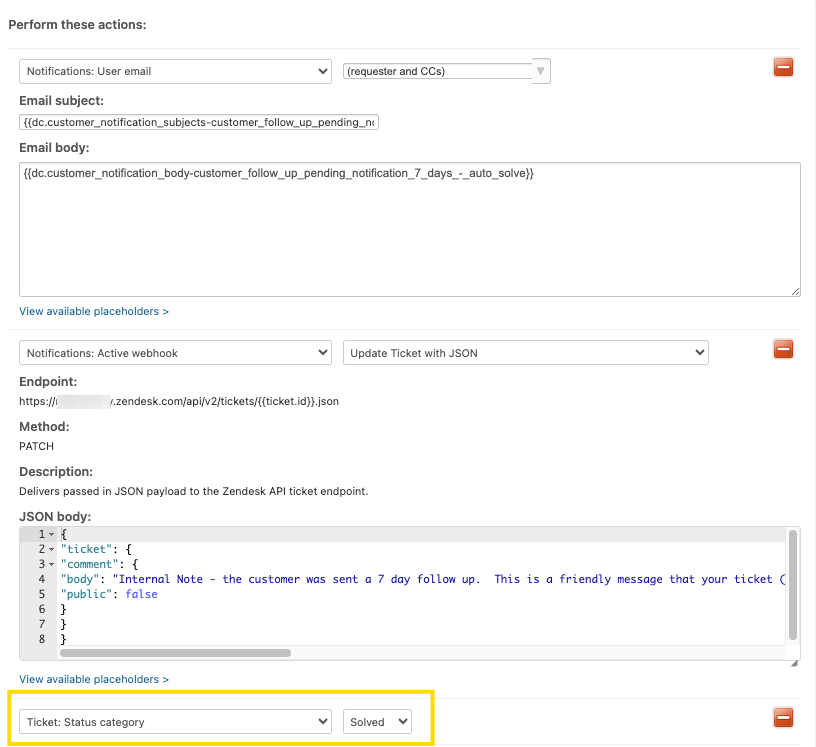
Perform these actions
- Notify user by email → Requester + CCs.
- Notify active webhook → Update ticket with JSON (internal agent note).
- Change status to Solved.
Summary: This automation acts 7 days after Pending status, emails the Requester and CCs, adds an internal note for agents, and crucially, sets the ticket status to Solved.
Recap
With these two automations you now have:
- One automation to follow up with Requesters when the ticket is Pending
- A second automation to follow up again and auto-solve the ticket
💁🏽 Pro Tip
Users can also solve their own tickets via the Help Center. Click here to learn how.