

The Mark as Solved button is already built into the default Zendesk Copenhagen theme but is often removed in custom themes or when the default theme is customised.
🎯 Goal
Validate if end-users can solve their own tickets from the Help Centre using the Mark as Solved button and, if not, enable it.
When is the Mark as Solved button visible?
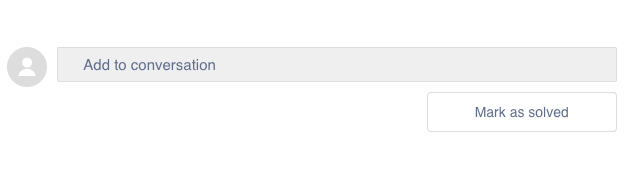
If enabled, make Requesters aware they can solve their tickets so they are closed proactively. I do this by informing the Requester in follow-up email notifications that they can click the Mark as Solved button at the end of ticket comments.
The button only appears under certain conditions:
- The Requester is the ticket creator.
(End-users with organization-wide visibility cannot solve tickets they didn’t create.) - The ticket is assigned to an agent.
(If assigned only to a group, the button won’t appear.) - The ticket type is Question, Incident, or Task.
(Problem tickets cannot be solved by the Requester.)
No Button Visible?
If it’s not showing, check and enable it as follows:
- Open Guide Admin themes via Admin Center > Guide > Guide Admin or directly at
https://YOURDOMAIN.zendesk.com/theming/workbench - Back up your live theme: click the ellipsis → Copy.
- On your live theme, click Customize.
- Click Edit Code.
- Open
request_page.hbs(notrequests_page.hbs). - Search for
mark_as_solved.
– If it’s present and not commented out, the button is enabled.
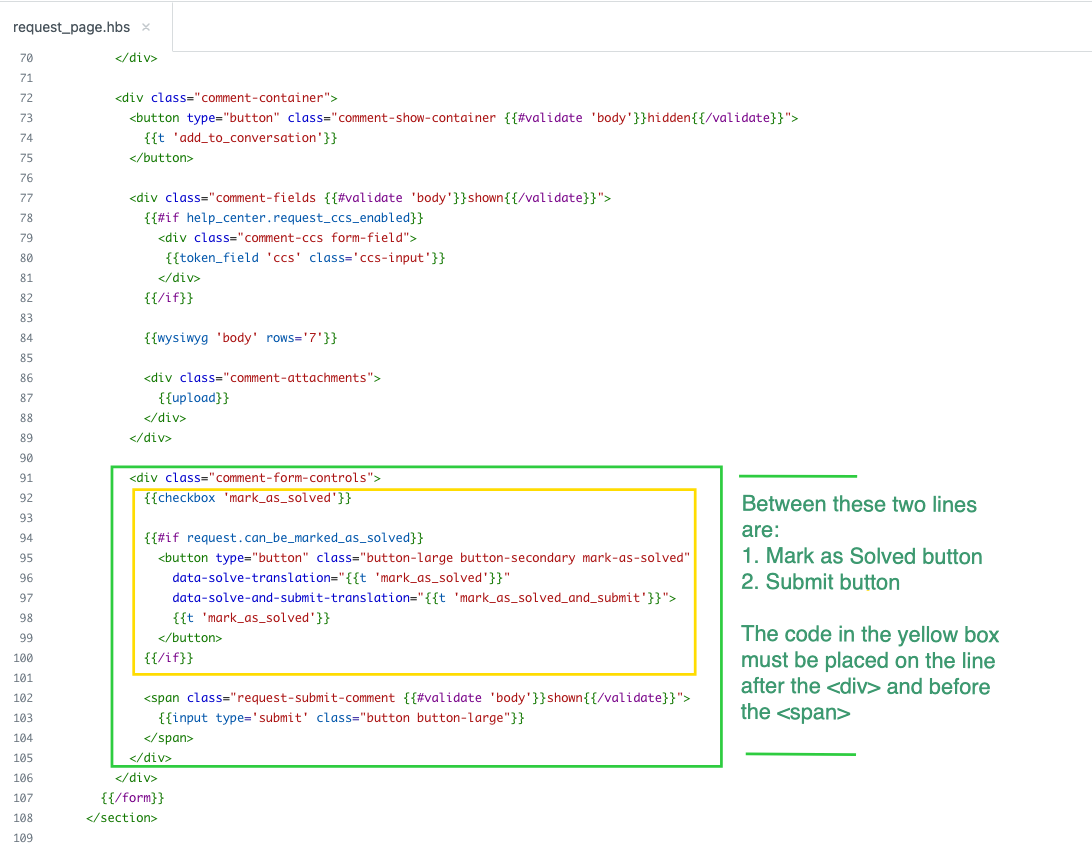
– If missing, add the following code:
{{checkbox 'mark_as_solved'}}

{{#if request.can_be_marked_as_solved}}
<button type="button" class="button-large button-secondary mark-as-solved"
  data-solve-translation="{{t 'mark_as_solved'}}"
  data-solve-and-submit-translation="{{t 'mark_as_solved_and_submit'}}">
  {{t 'mark_as_solved'}}
</button>
{{/if}}
Not sure where to add the code?
The placement varies by theme, but generally it goes inside the request page template where the comments and controls are rendered.
Test it
Steps to test:
- As a dummy end-user, submit a new ticket.
(The button does not appear immediately after submission.) - Switch to the agent workspace, assign the ticket to any agent, and submit.
- Switch back to the Help Centre and refresh. The Mark as Solved button should now appear under the comments box.
💁🏽 Pro Tip
Log in with a dummy account in a private (incognito) browser tab so you can switch between agent and end-user views easily.
Recap
This article covered:
- An automation to follow up with Requesters when a ticket is Pending.
- A second automation to follow up again and solve the ticket.
- How to validate or enable the option for end-users to solve their tickets.