
Every month, Zendesk ships new features and enhancements designed to simplify workflows, improve agent productivity, and deepen AI-driven customer insights. Below is a breakdown of the Zendesk April 2026 release with updates, along with practical steps to get started.
Missed our previous round-ups?
- 🚀 Zendesk March 2026 Release: Key Features & How to Use Them
- ❤️ Zendesk February 2026 Release: 8 Features We Love
- ❄️ Zendesk January 2026 Release: Key Features & How to Use Them
1. Democratized AI: Generative Writing Tools Now Standard
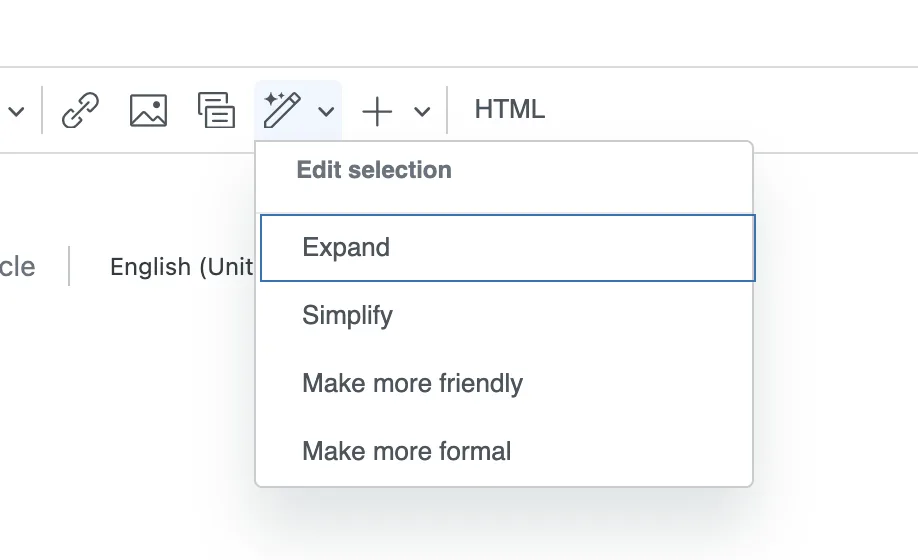
In a massive shift for mid-market and SMB teams, Zendesk has moved several high-value Knowledge features out of the “Add-on only” category. Specifically, generative AI writing tools—which allow you to expand, simplify, or adjust the tone of help center articles—and AI-powered article translation are now available to all Suite and Knowledge plans. This removes a significant cost barrier for teams looking to maintain a multilingual, professional knowledge base with lean resources.
Requires Add-On? No, this is now a standard feature for all plans.
How to Implement:
- Navigate to your Zendesk Guide instance and open any existing article or create a new one.
- In the article editor, highlight the specific block of text you wish to refine.
- Click the AI icon that appears in the floating toolbar above your selection.
- Choose your desired action: Expand to add more detail, Simplify for better readability, or Change tone to make it more professional or friendly.
- For translations, navigate to the Translations panel in the article settings and use the AI-powered engine to generate localized content in your supported languages.
2. Empowering Customers: User-Ended Messaging Sessions
Efficiency in messaging often depends on knowing exactly when a conversation is over. End users can now manually end their own messaging sessions directly within the Web Widget. This feature is a game-changer for queue management; it clears inactive tickets immediately and prevents agents from sending unnecessary follow-up “ghost” messages to customers who have already found their answer.
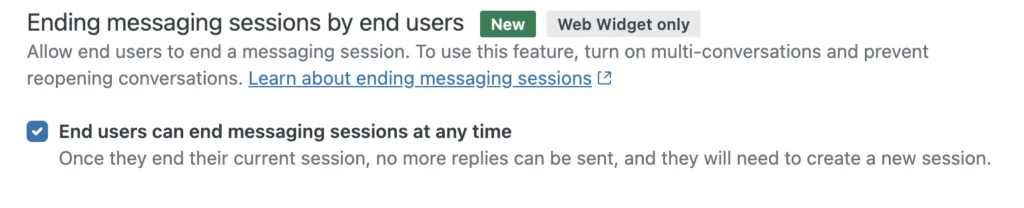
Requires Add-On? No, this is a standard update to the messaging Web Widget.How to Implement:
- In the Admin Center, click on Channels in the sidebar and select Messaging.
- Click Message Settings in the top right corner.
- Locate the End session capability and toggle it to On. (Note: It is off by default).
- Once active, customers will see an “End conversation” option in the widget menu, allowing them to close the loop once satisfied.
3. Visualizing Success: The AI Conversation Journey Tab
For those using Advanced AI agents, the “black box” of customer-bot interaction is finally being opened. A new Conversation journey tab has been added to the reporting dashboard. It provides a visual flow-map of how users interact with your AI, highlighting where the bot successfully deflects a ticket versus where it causes a frustrated escalation to a human. This allows admins to replicate successful paths and fix “dead-ends” in their knowledge base.
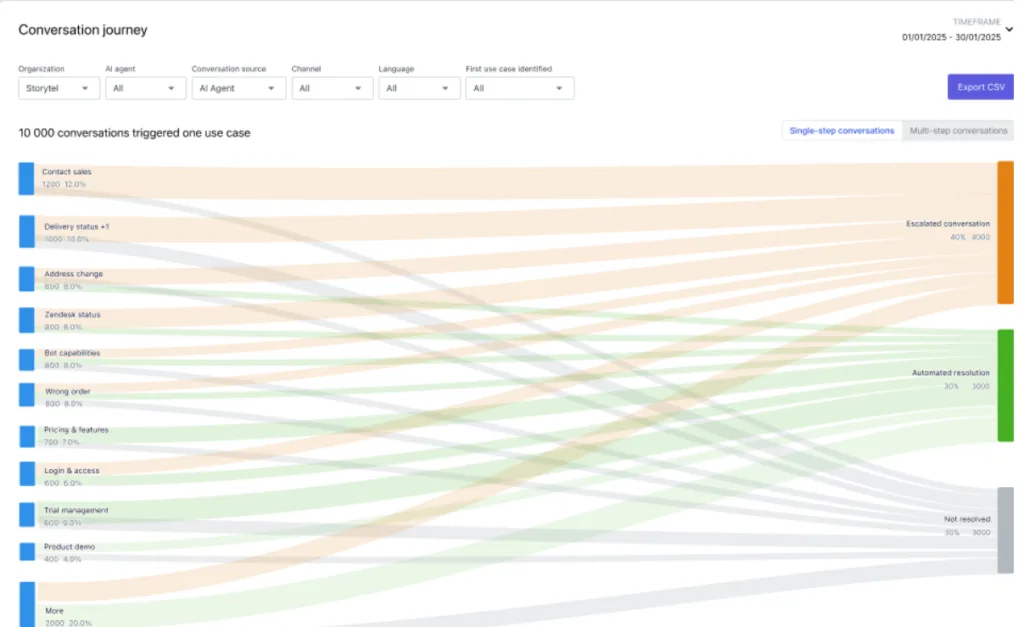
Requires Add-On? Yes, this requires the Advanced AI add-on.
How to Implement:
- Locate and click the new Conversation journey tab at the top of the AI Analytics dashboard.
- Use the filters to select specific AI agents, Channels, or Languages you wish to analyze.
- Review the visualization to see “Use Cases” (intents) and follow the branches to see outcomes: Resolution, Escalation, or User Dropped.
- Export the data as a CSV if you need to perform a deeper audit of specific high-escalation paths.
4. Optimizing Workflows: AI-Based Routing Recommendations
Zendesk Copilot can now act as a consultant for your support operations. There are now 21 different types of AI-based recommendations available within the Admin Center. These recommendations cover everything from basic omnichannel routing setup to advanced optimizations, such as adjusting group capacity or refining overflow rules to reduce customer wait times.
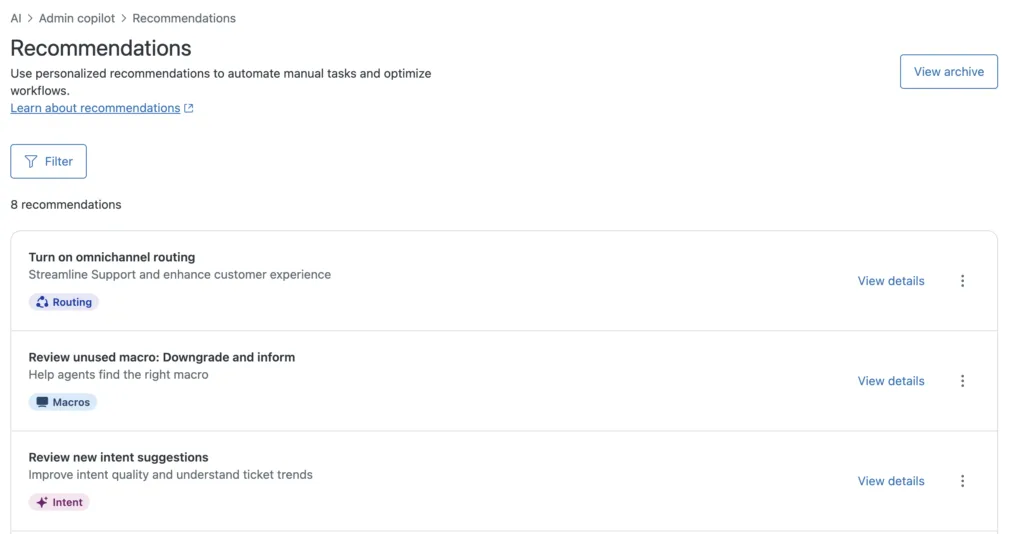
Requires Add-On? Yes, this requires the Zendesk Copilot add-on.
How to Implement:
- Head over to Admin > AI > Agent Copilot > Recommendations
- Browse through the AI-generated suggestions
- Click on a specific recommendation to see the details.
- Optionally, apply.
5. Unified Channels: Route Completed Calls to Email
Bridging the gap between voice and asynchronous support is a common pain point. Omnichannel routing has been updated to allow ended calls to be routed as email tickets. This ensures that even after a call is finished, the record (or a voicemail) is treated with the same routing logic as your primary email queue, ensuring the right person follows up based on the customer’s history.
Requires Add-On? No, this is an update to the standard Omnichannel Routing engine.
How to Implement:
- In Admin Center, go to Objects and rules > Business rules > Triggers.
- Create a new trigger or edit an existing one that handles Voice tickets.
- Under Conditions, you can now use the Routing channel condition to identify tickets coming from the voice channel.
- Under Actions, select Set routing channel and choose Email from the dropdown.
- Save the trigger. Now, when a call ends, the ticket will be routed to the appropriate group according to your email-based routing rules.
6. Granular AI Control: Group-Level Summarization Permissions
Not every department handles the same level of sensitive data. You can now restrict the AI ticket summarization feature to specific agent groups. This is perfect for mid-market companies that want to roll out AI productivity tools to Tier 1 support while keeping it disabled for specialized teams like HR, Billing, or Legal.
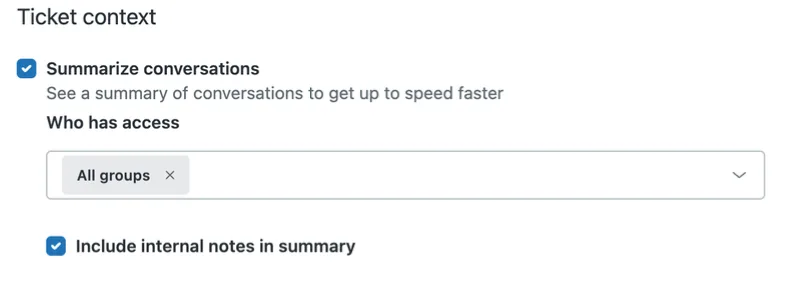
Requires Add-On? Yes, this is part of Zendesk Copilot.
How to Implement:
- In Admin Center, navigate to AI > AI features.
- Find the Summarize conversations feature and click its settings icon.
- Under the Who has access section, change the selection from “All groups” to Specific groups.
- Type the name of the groups you want to give permission to and select them from the list.
- While you’re here, you can also toggle the Include internal notes option to determine if the AI should look at private team discussions when writing the summary.
7. Scaling Management: Delegated Team Member Roles
As SMBs grow, account owners often become a bottleneck for simple tasks like adding a new hire to Zendesk. On Enterprise plans, a new custom role permission allows you to delegate team management. You can now give senior agents or team leads the ability to create, edit, or reassign team members without giving them full Administrative access to your security or billing settings.
Requires Add-On? No, but requires an Enterprise plan to access custom roles.
How to Implement:
- Navigate to Admin Center > People > Roles.
- Click on Create role or select an existing custom role to edit.
- Scroll down to the Management permissions section.
- Locate Team members and select the appropriate level of access: View only or Create, edit, and reassign.
- Save the role and assign it to your team leads to offload user administration safely.
8. IT Lifecycle Automation: Okta & Microsoft Entra Connectors
For organizations using Zendesk for internal employee services, the Action Builder has received a massive power-up. Native connectors for Okta and Microsoft Entra ID (formerly Azure AD) are now live. This allows admins to build automated workflows that handle identity tasks—like password resets or account locking—directly from a Zendesk ticket without the agent ever leaving the workspace.
Requires Add-On? Yes, this requires Advanced AI or the Employee Services package.
How to Implement:
- Go to Admin Center > Objects and rules > Action Builder.
- Click the Connectors tab and select Add connector.
- Choose Okta or Microsoft Entra ID from the available list.
- Follow the prompts to authenticate your identity provider (this usually requires an API token from your IT team).
- Once connected, you can add “Actions” to your ticket flows, such as “Update user status in Okta” or “Reset password in Entra ID,” to automate your IT service management.
That’s a wrap!
✅ That’s a wrap on the Zendesk April 2026 Release! This month is defined by control and accessibility—giving smaller plans more AI power while giving larger teams the granular permissions they need to scale safely.
Want to deep dive into the details? Here is the full run down from Zendesk.
👉 Ready to put these features to work in your organization? Let’s chat about tailoring them to your support setup: Book a call today ↗